Add a note to your shift
Tell the office what the clock can't — a late clock-on, a different start, a detour.
On your phone · 4 steps · Updated
Steps
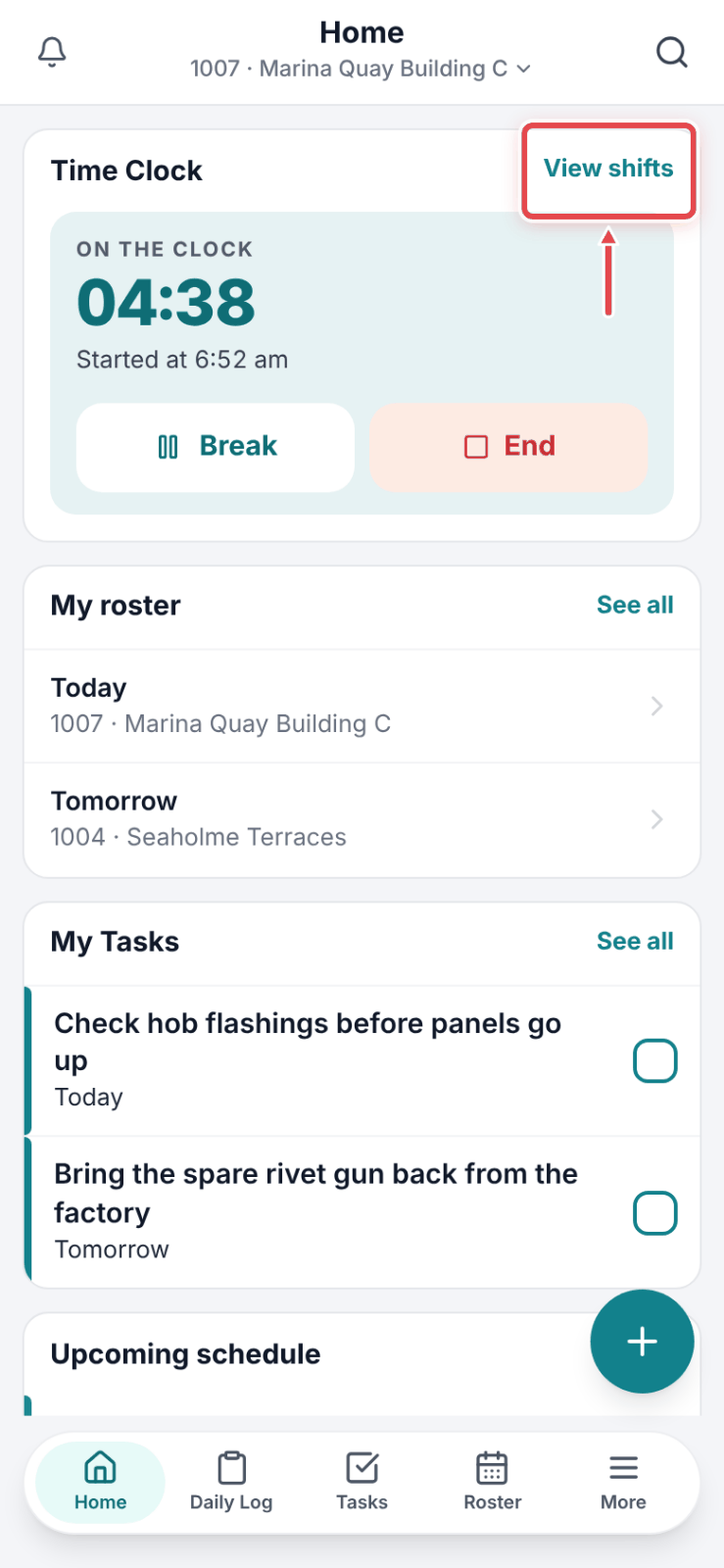
Step 1: On Home, tap View shifts on the Time Clock card.
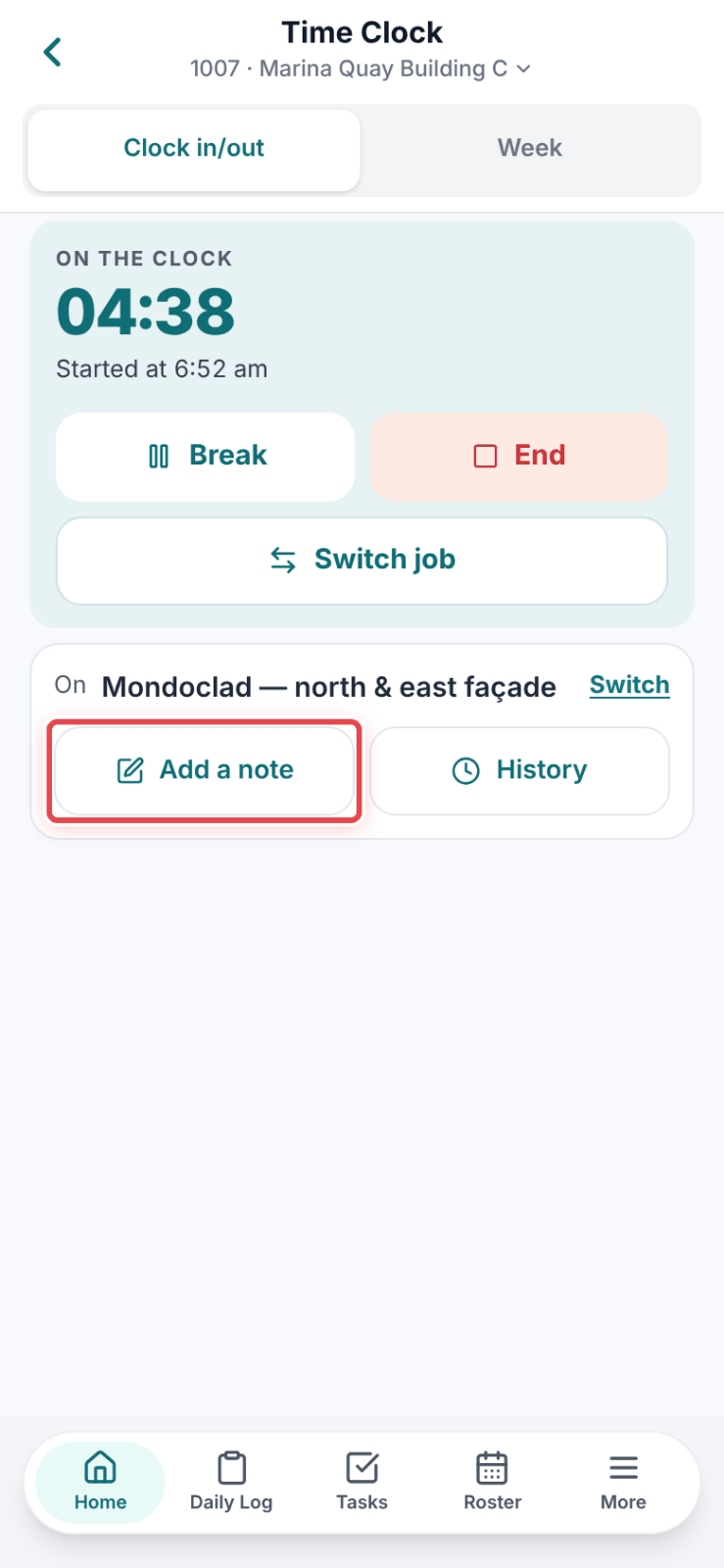
Step 2: Tap Add a note. It opens the shift you are on — or your last one if you are off the clock.
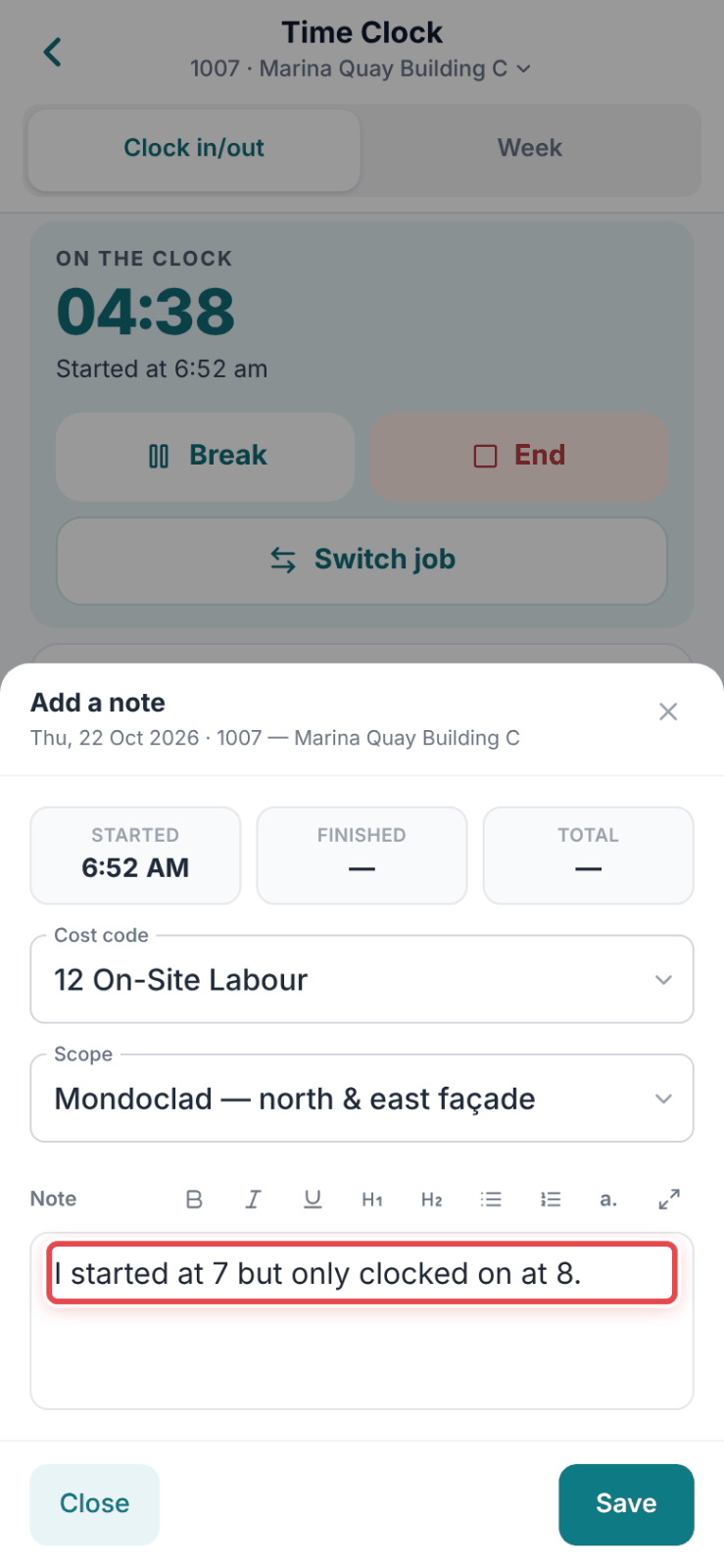
Step 3: Type the note in the Note box, for example: I started at 7 but only clocked on at 8.
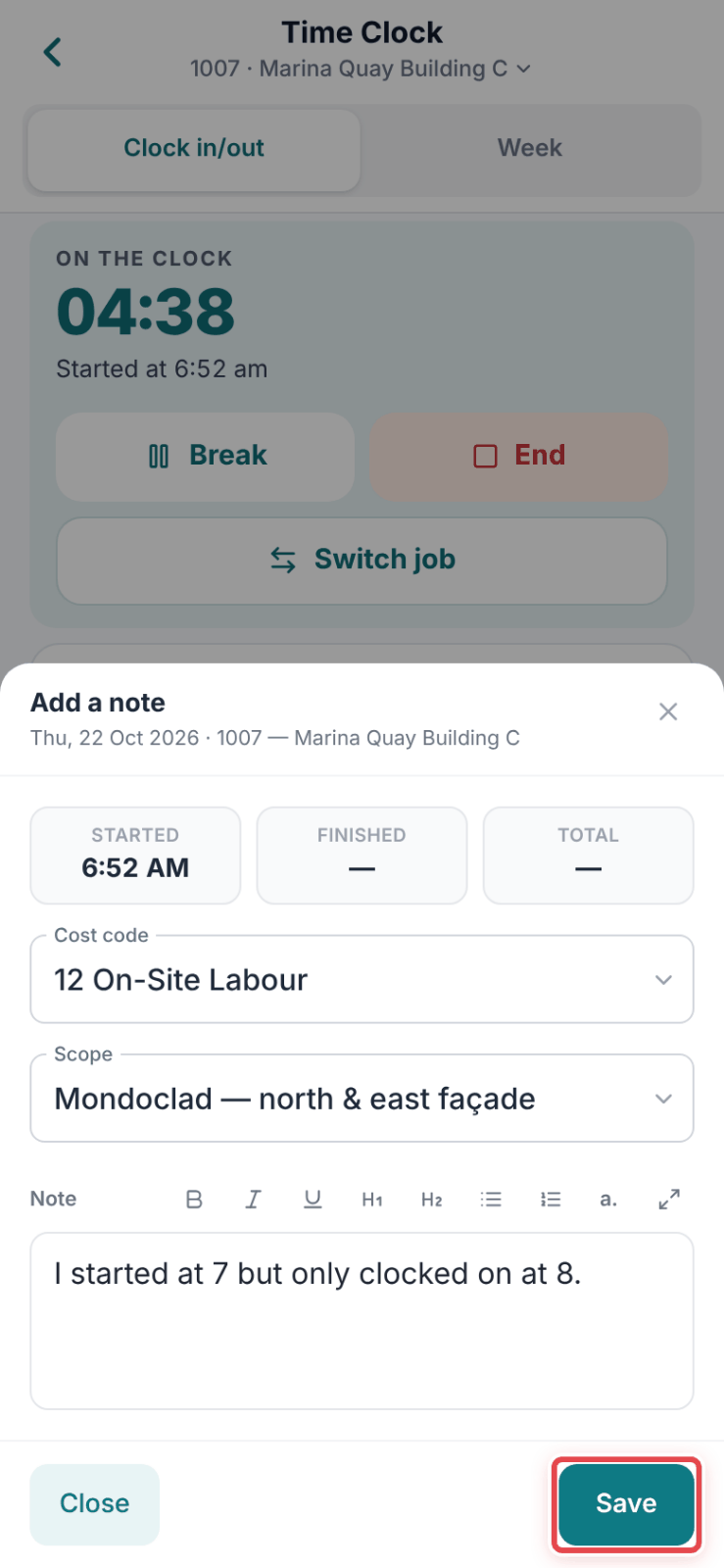
Step 4: Tap Save.
Good to know
Tip — You can also write a note as you finish: the End sheet has the same Note box above Save & clock out.
Note — History, beside Add a note, lists your shifts on this job. Tap one to open it.