Review and approve timesheets
Check the crew's shifts on a computer and approve them, which locks the hours to the job cost.
On a computer · 4 steps · Updated
Video transcript
- 0:55In the office, open the job's Time Clock. Timesheets comes first.
- 1:03Pick the week to check. Here, last week: the twelfth to the eighteenth.
- 1:12Every shift: who, when, the hours, and the cost at their pay rate.
- 1:20Issues flags what needs a look. Tane never clocked off on Saturday.
- 1:28Tick his shift, press Set clock-out, and type when he finished: twelve thirty.
- 1:36Apply, and confirm. His hours are back on the timesheet.
- 1:43Now neither has a break. Tick both, and press Add break.
- 1:48Confirm, and the list is clear.
- 1:55Josh worked Saturday too, but forgot to clock on. Press plus.
- 2:00Type a name, and pick Josh.
- 2:05Pick the date and his finish time. The hours work themselves out.
- 2:14Choose the scope, and add his half-hour lunch break.
- 2:24Add shift. It's on the timesheet, costed like the rest.
- 2:32Happy with the week? Tick every shift, then Approve.
- 2:38Approved hours lock, and count as actual labour cost on the job.
- 2:45Scopes shows the labour budget from your estimate, by scope and cost code.
- 2:53Actual is the hours worked on it, at each person's rate.
- 2:58Need it for payroll? Export the week to Excel.
- 3:07Time Clock. Clocked on site, costed on the job.
Steps
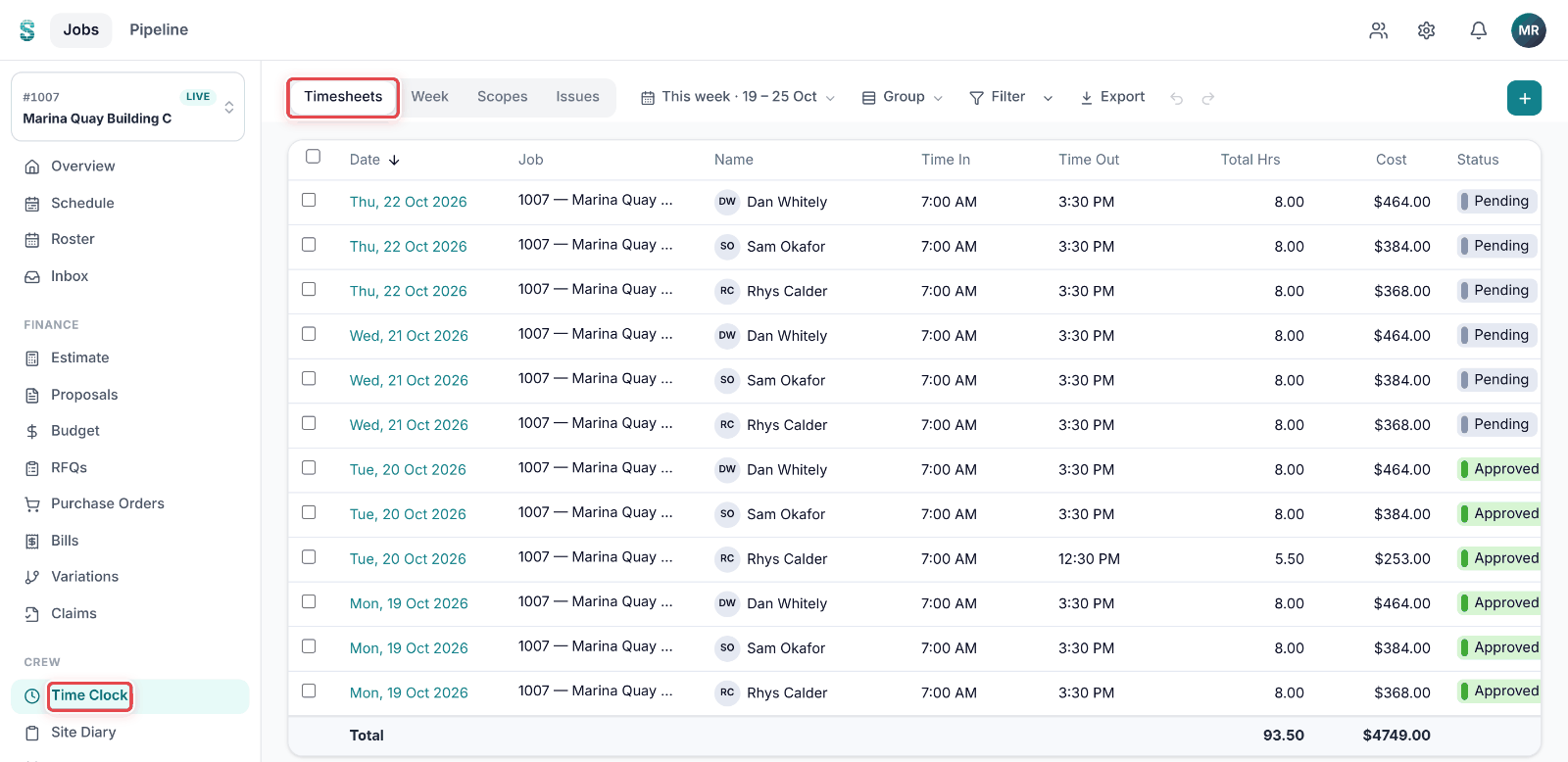
Step 1: Open a job, then go to Time Clock. It opens on Timesheets.
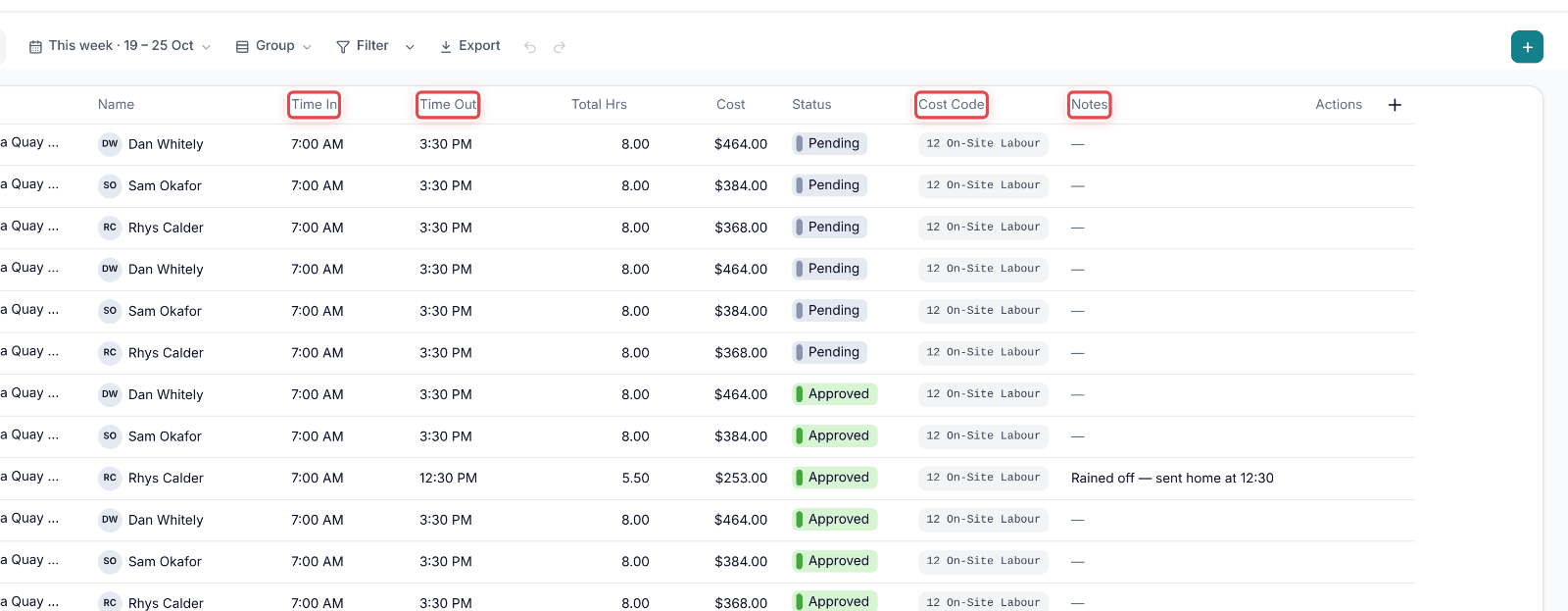
Step 2: Check each shift's Time In, Time Out, Cost Code and Notes. Click a shift to open it.
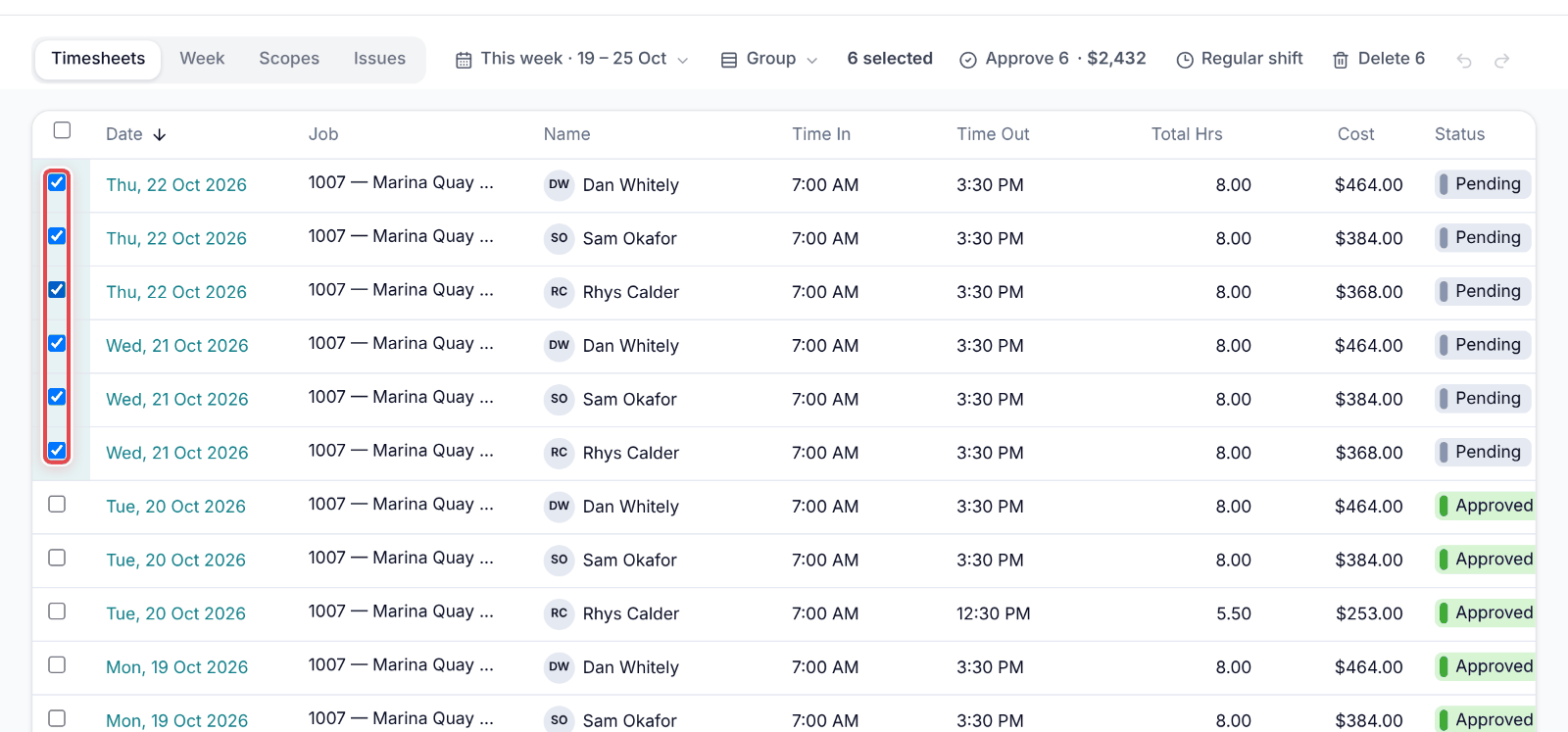
Step 3: Tick the shifts that are right.
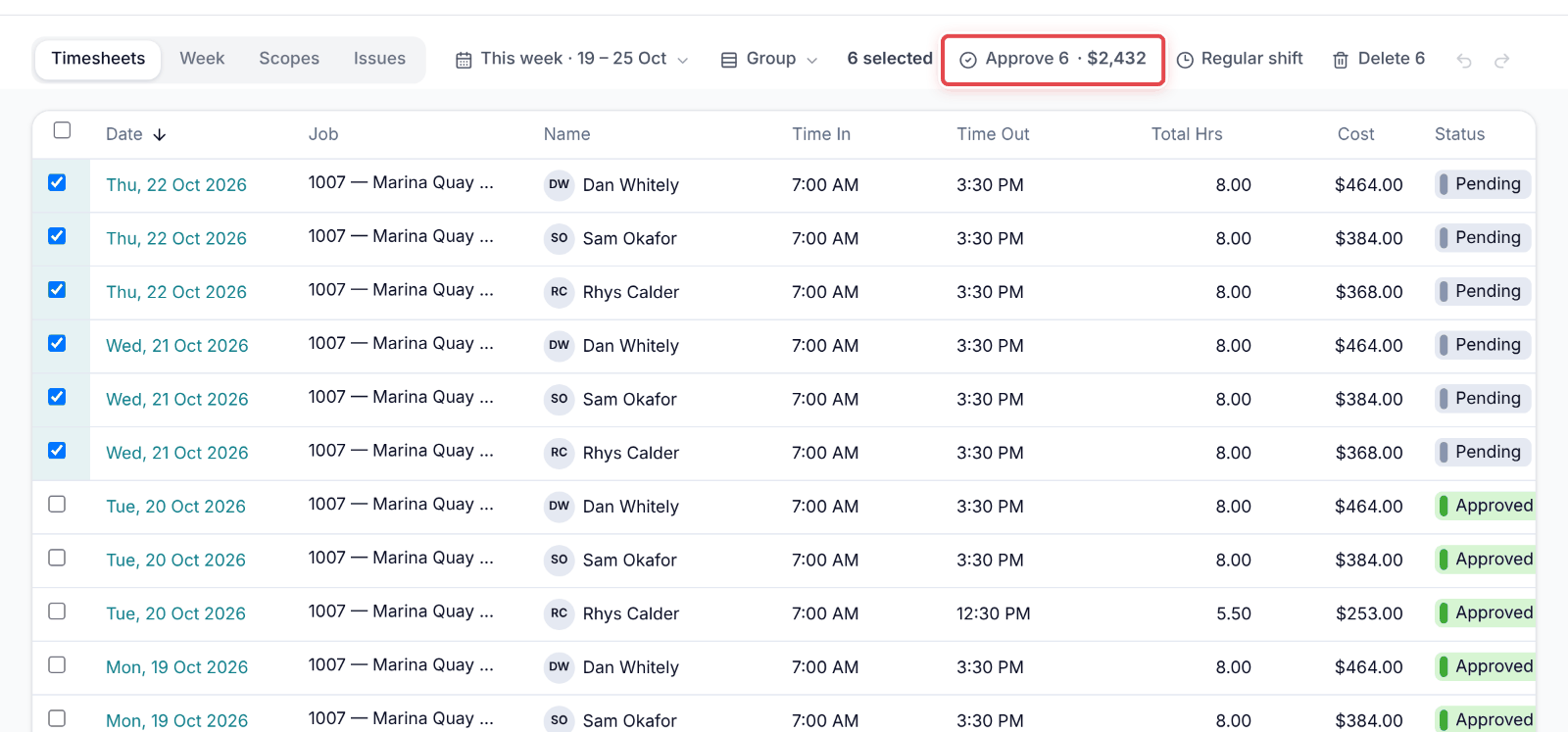
Step 4: Click Approve — the button shows how many shifts you are approving and their labour cost.
Good to know
Important — Approving locks the hours. To change an approved shift, set it back to Pending first.
Note — Approve shows only for people allowed to approve hours. If you can't see it, ask your admin.
Tip — A shift with no pay rate is approved at $0 — the ⓘ beside Approve names who. Add the rate in Settings → Users.