Clock in and out on site
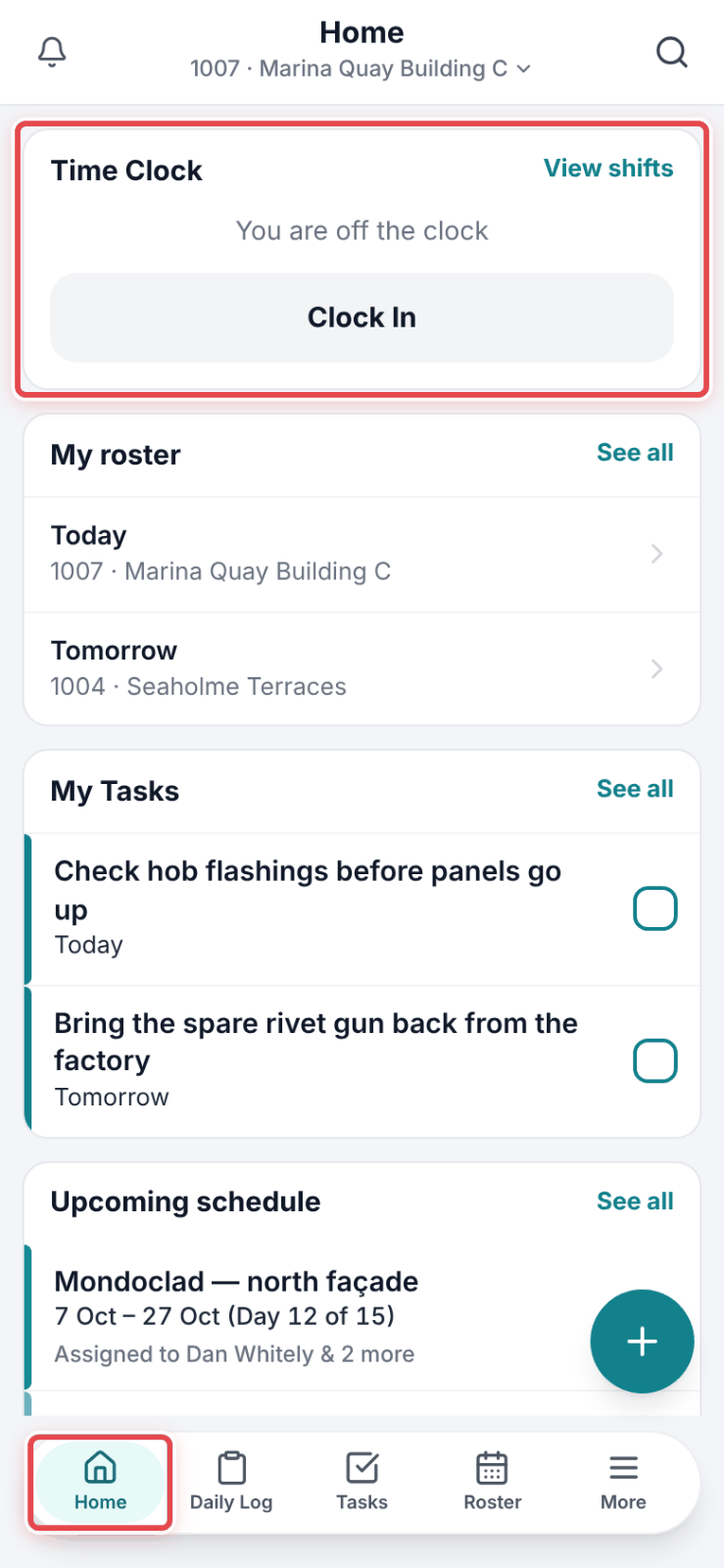
Start and finish your shift from the Time Clock card on your phone's Home screen.
On your phone · 6 steps · Updated
Video transcript
- 0:00Your crew clock on from their phones. The office checks, approves and costs the hours.
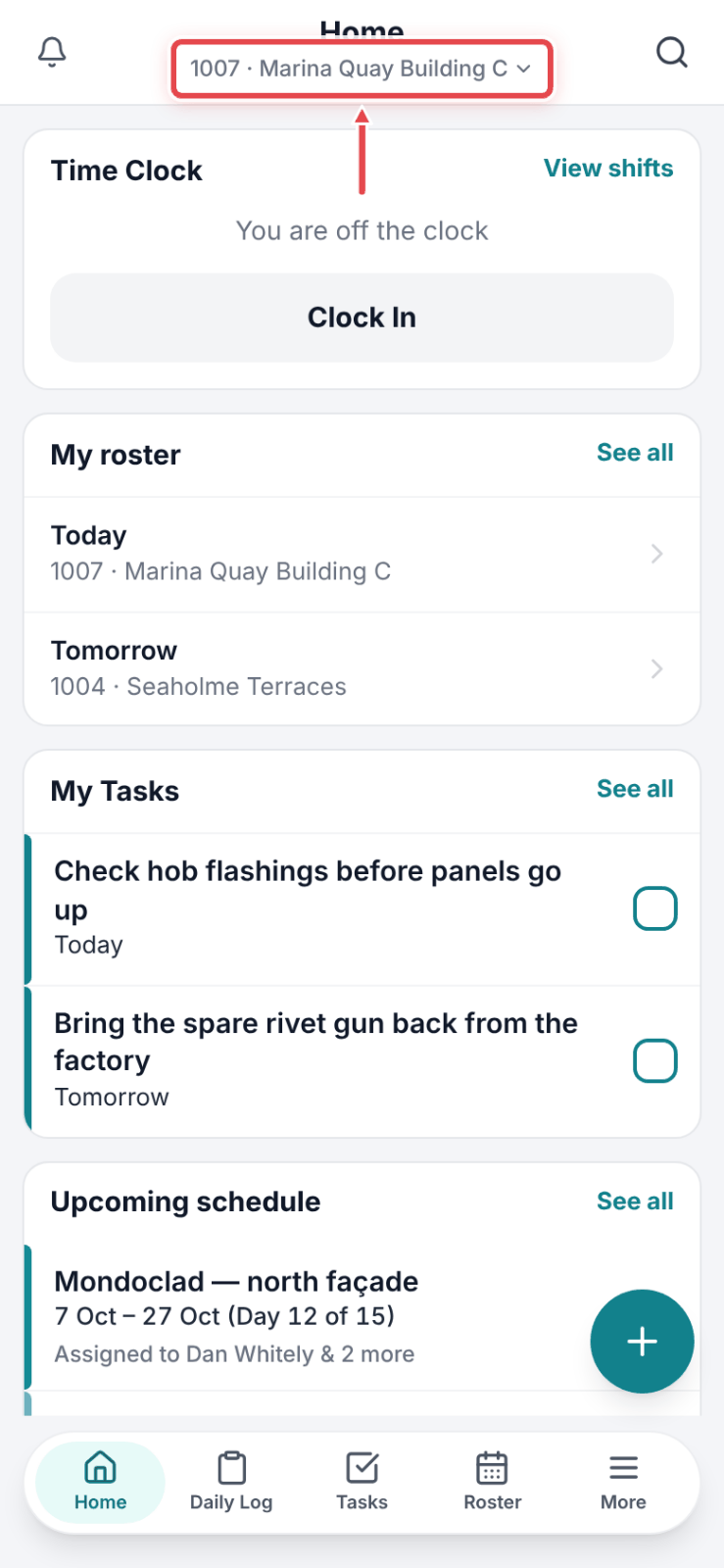
- 0:09On site, open Home. The job you're on is under the title.
- 0:13Tap View shifts to pick your cost code and scope.
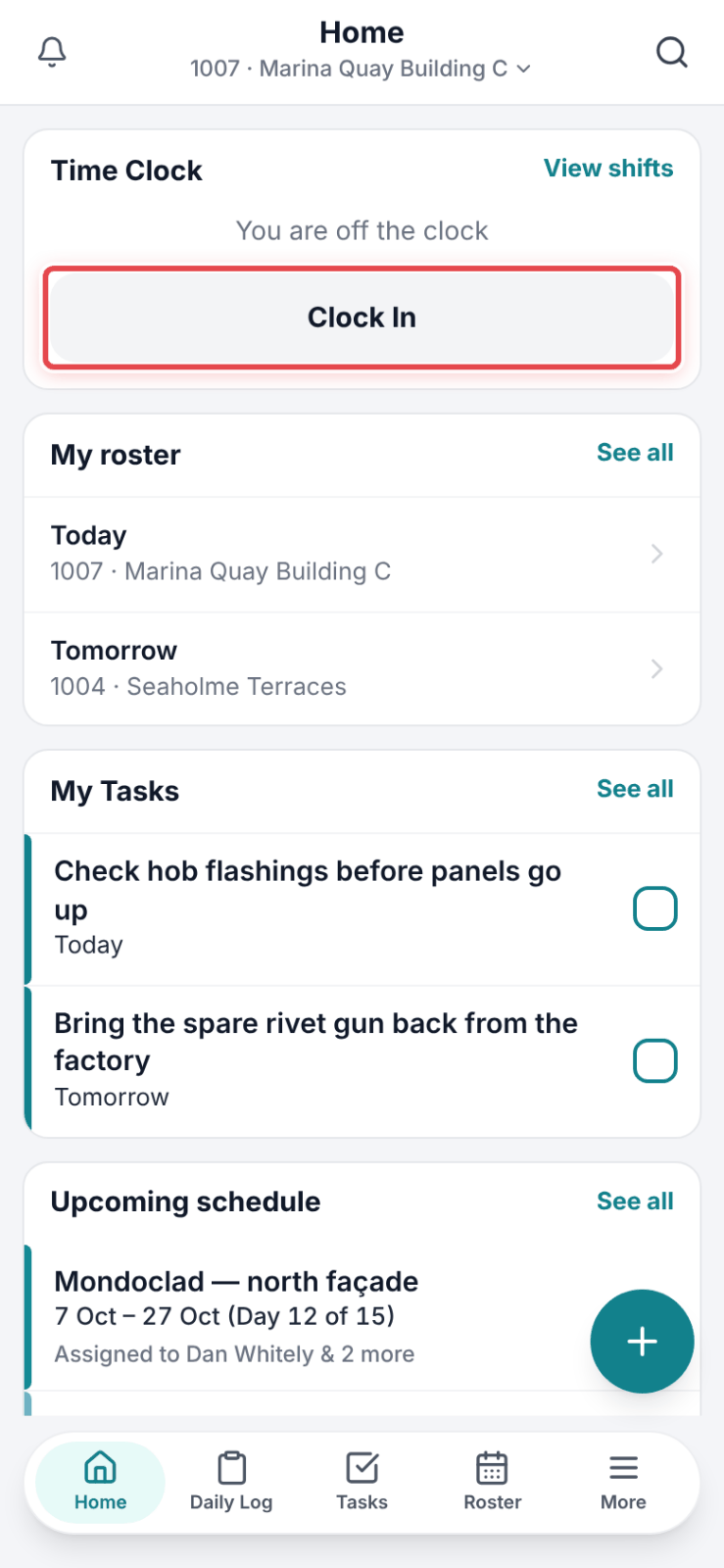
- 0:19Tap Clock In. The timer starts, and your location is saved once.
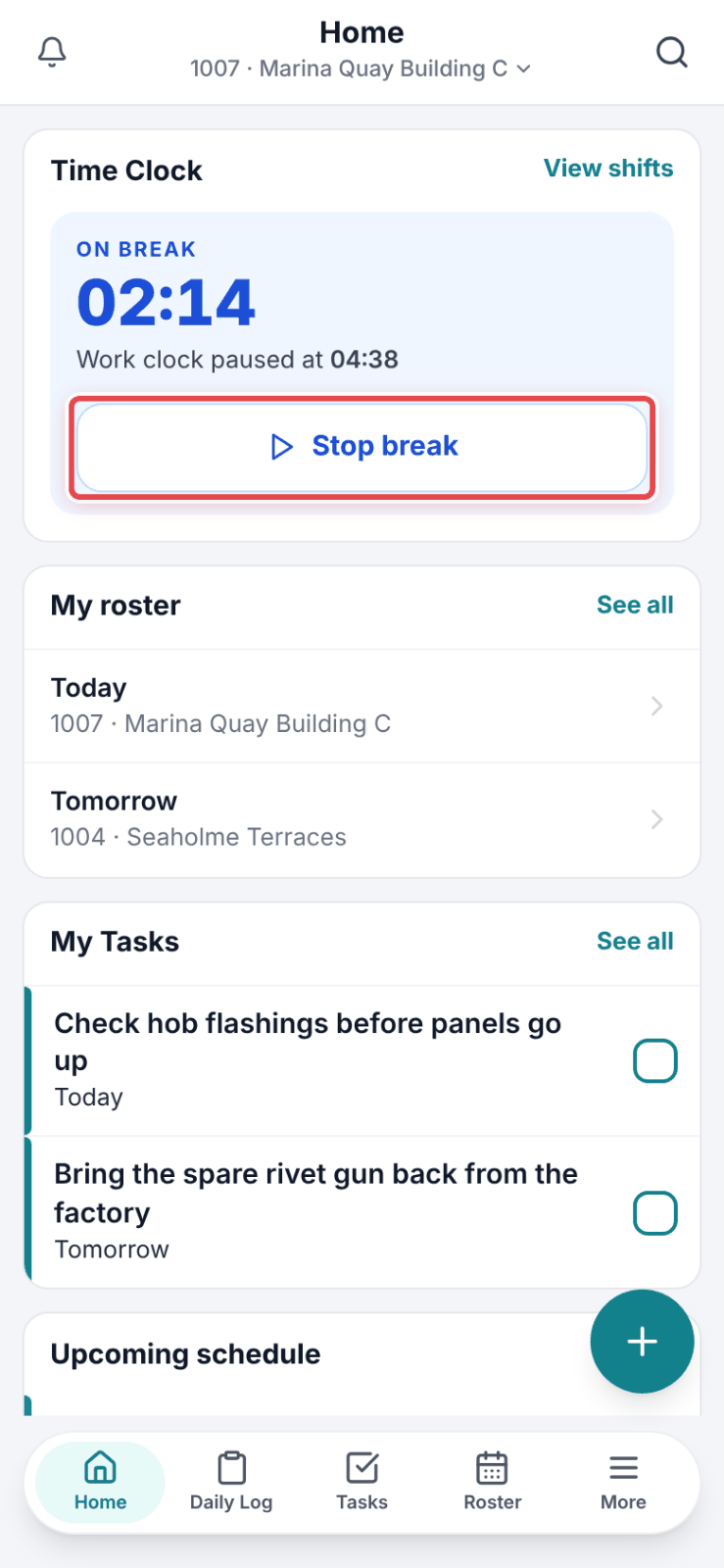
- 0:24Morning tea? Tap Break. Your work clock pauses.
- 0:29Tap Stop break when you're back. The break comes off your hours.
- 0:33Sent to another site? Tap Switch job and pick the job.
- 0:40Hours so far stay on Keysborough. From now, they go to Mentone.
- 0:45At knock-off, tap End. Check your times, codes and scopes.
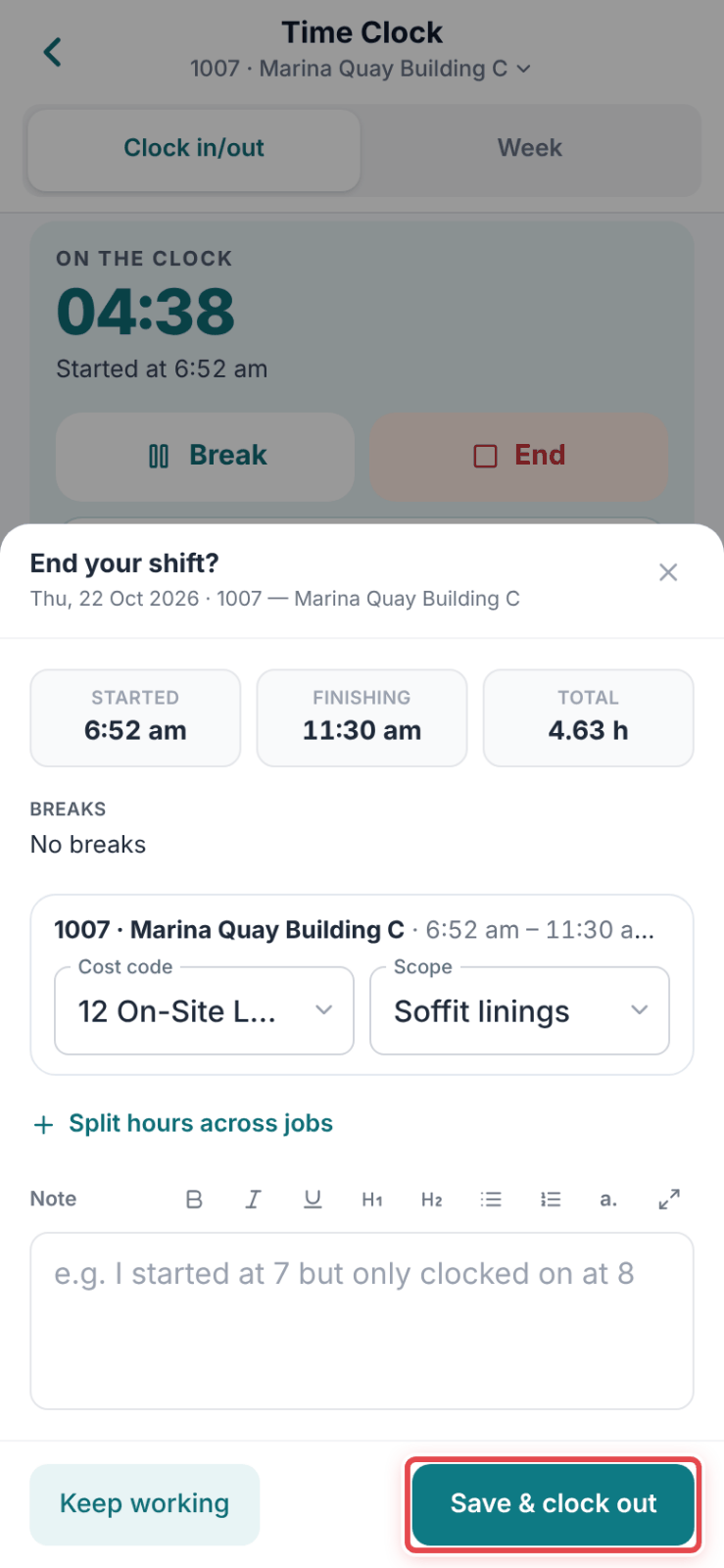
- 0:50Tap Save and clock out. Your day goes straight to the office.
Steps
Step 1: Open Subino on your phone. Home opens with the Time Clock card at the top.
Step 2: Check the job in the top bar is the one you are on. On All jobs, Clock In asks you to pick the job first.
Step 3: Tap Clock In. The card changes to On the clock and starts counting.
Step 4: Going on a break? Tap Break, then Stop break when you are back.
Step 5: At knock-off, tap End. Check the times, the Cost code and the Scope.
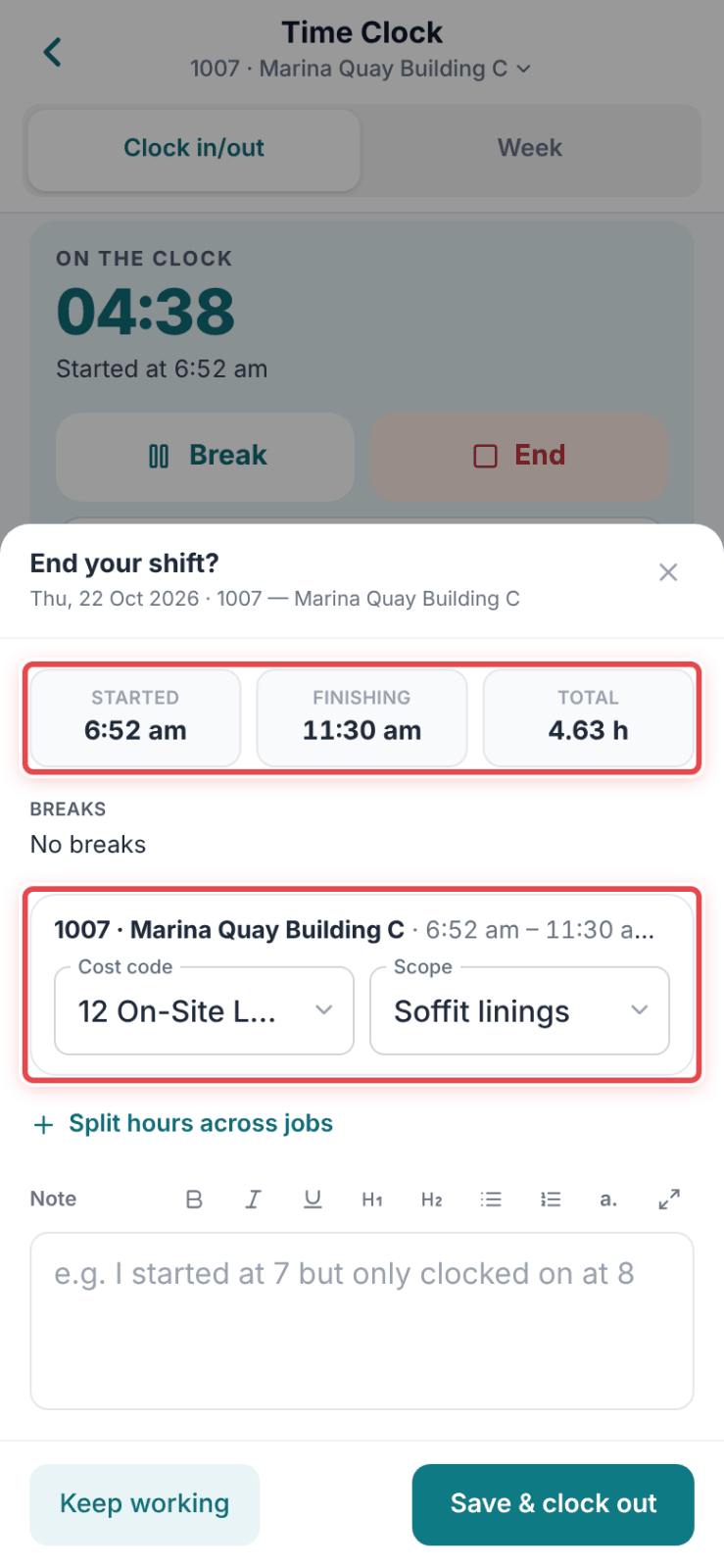
Step 6: Tap Save & clock out.
Good to know
Note — If your office has turned location on, a pin is taken at the tap of Clock In and at clock-out — nothing is tracked in between.
Important — End waits while a break is running. Tap Stop break first.
Tip — Tapped End too early? Tap Keep working — the sheet closes, nothing is saved and the shift carries on.