Fix a missed clock-out
Find shifts somebody forgot to end and set their finish time in one go.
On a computer · 5 steps · Updated
Video transcript
- 1:20Issues flags what needs a look. Tane never clocked off on Saturday.
- 1:28Tick his shift, press Set clock-out, and type when he finished: twelve thirty.
- 1:36Apply, and confirm. His hours are back on the timesheet.
- 1:43Now neither has a break. Tick both, and press Add break.
- 1:48Confirm, and the list is clear.
- 1:55Josh worked Saturday too, but forgot to clock on. Press plus.
- 2:00Type a name, and pick Josh.
- 2:05Pick the date and his finish time. The hours work themselves out.
- 2:14Choose the scope, and add his half-hour lunch break.
- 2:24Add shift. It's on the timesheet, costed like the rest.
Steps
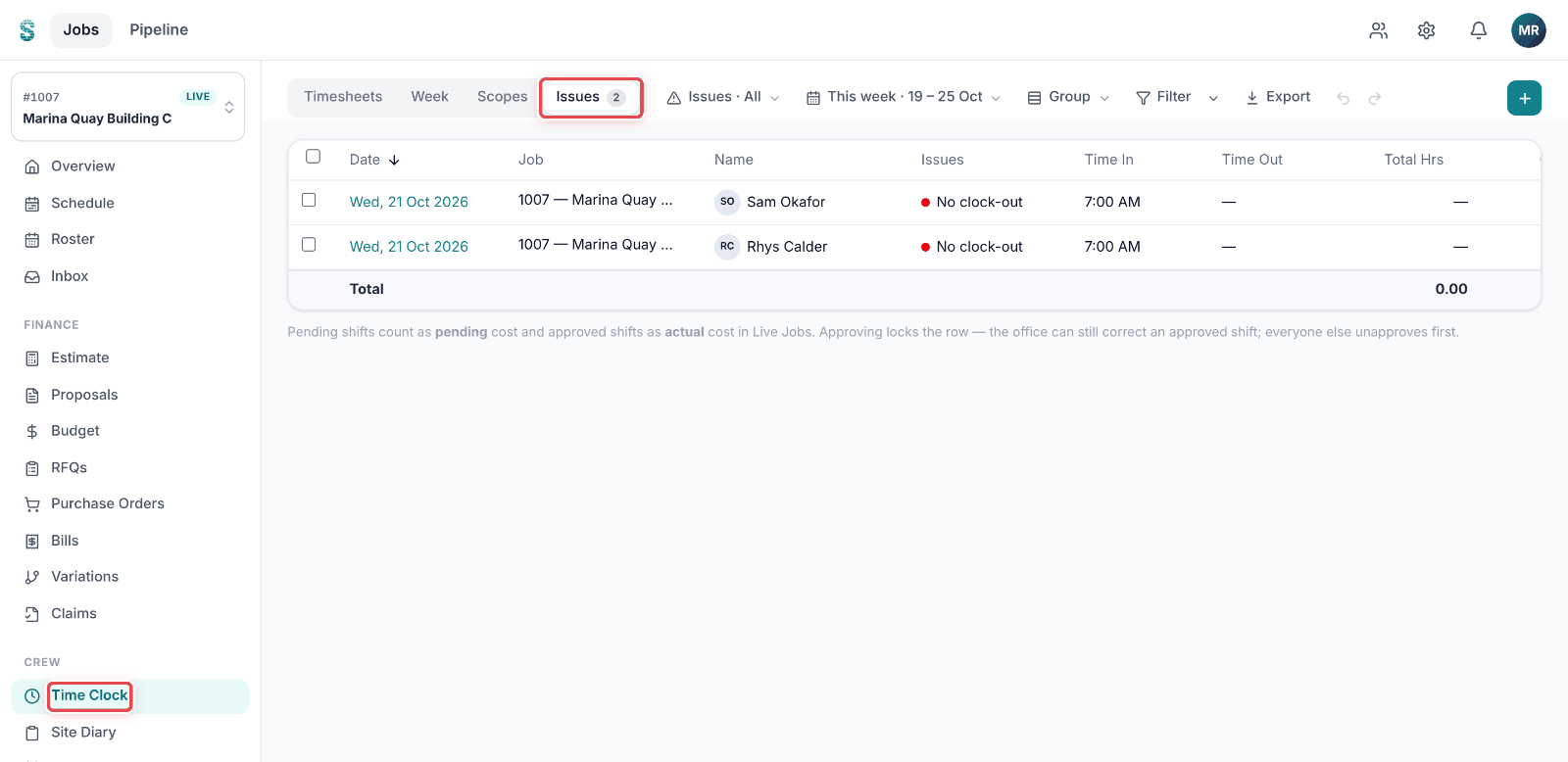
Step 1: Open a job, then go to Time Clock › Issues.
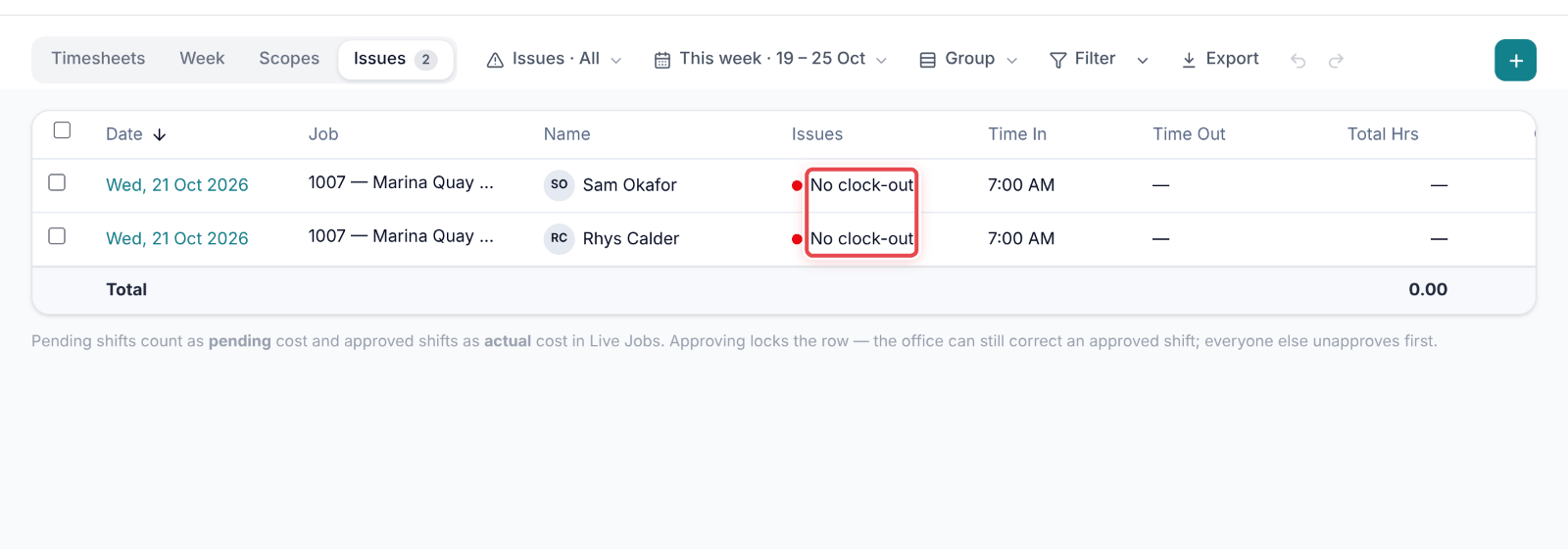
Step 2: Find the shifts marked No clock-out.
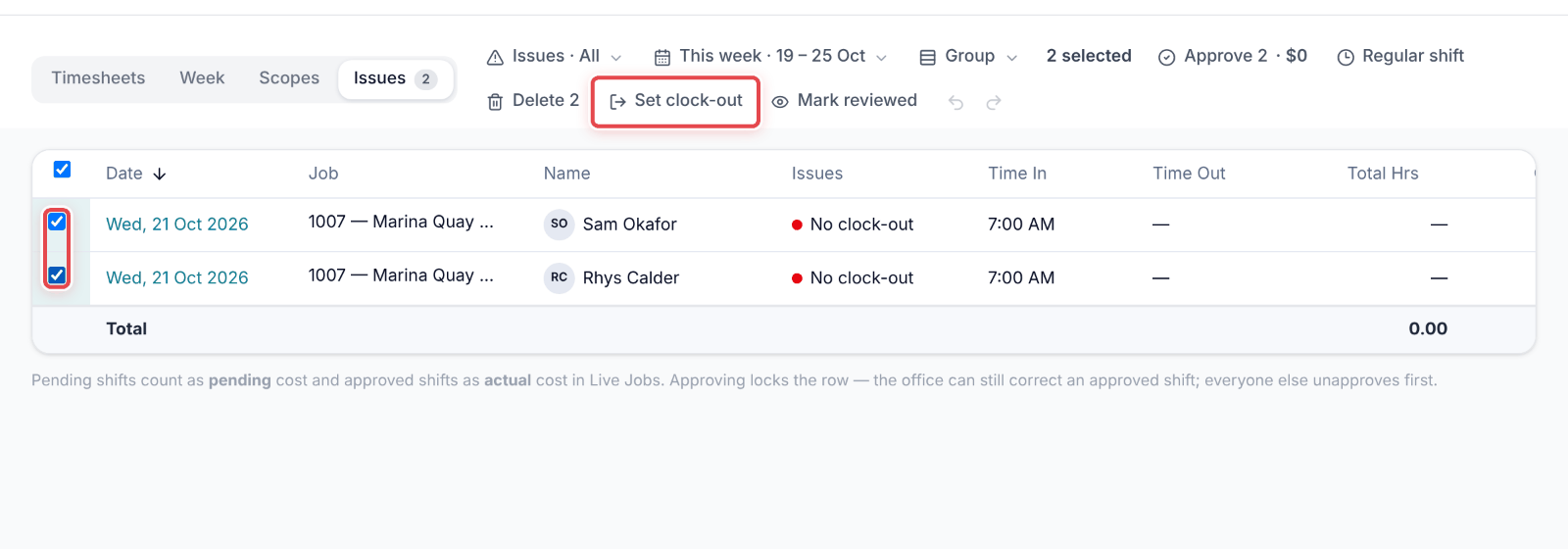
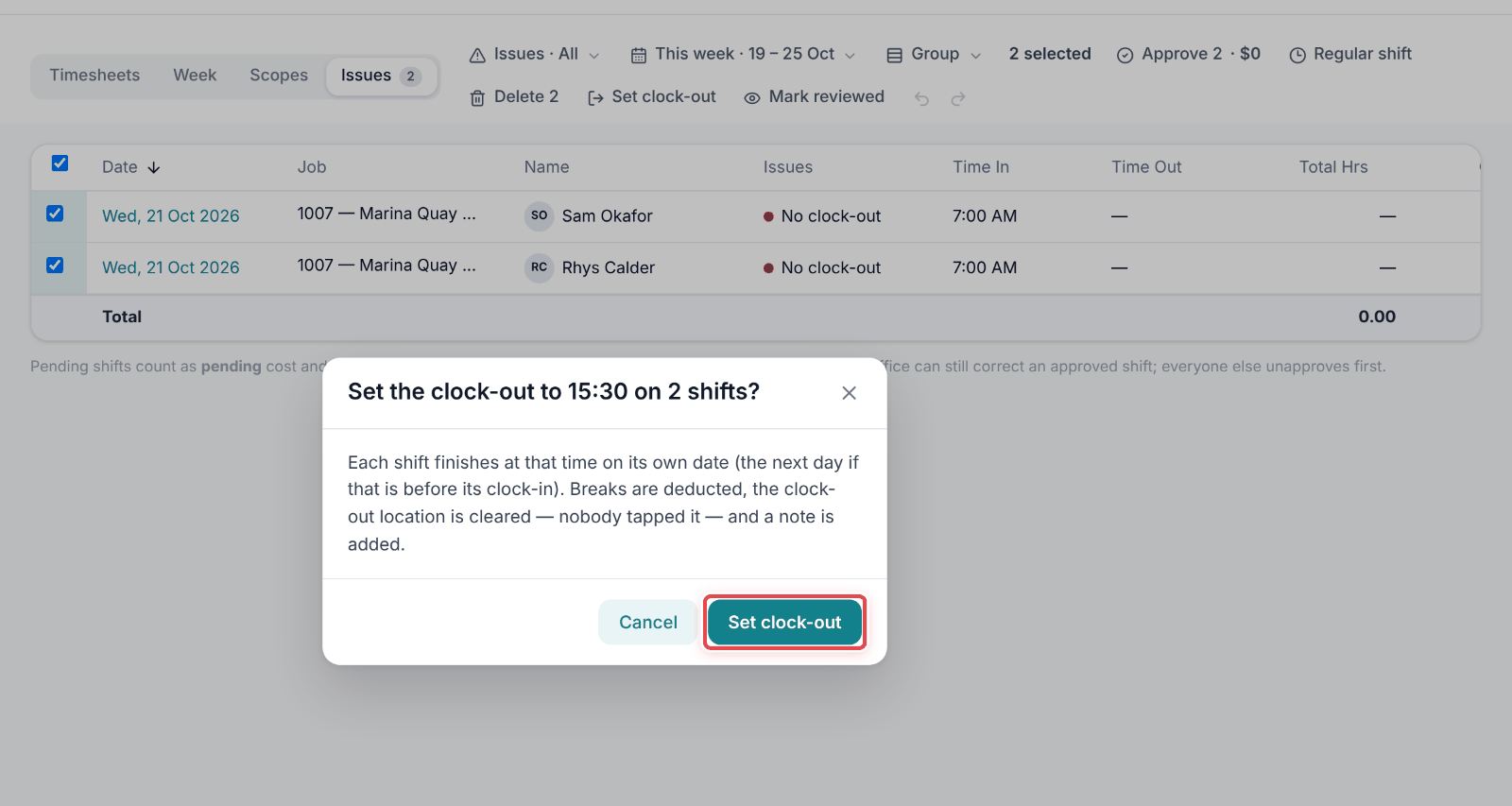
Step 3: Tick the shift (or several), then click Set clock-out.
Step 4: Type the Clock-out time and click Apply.
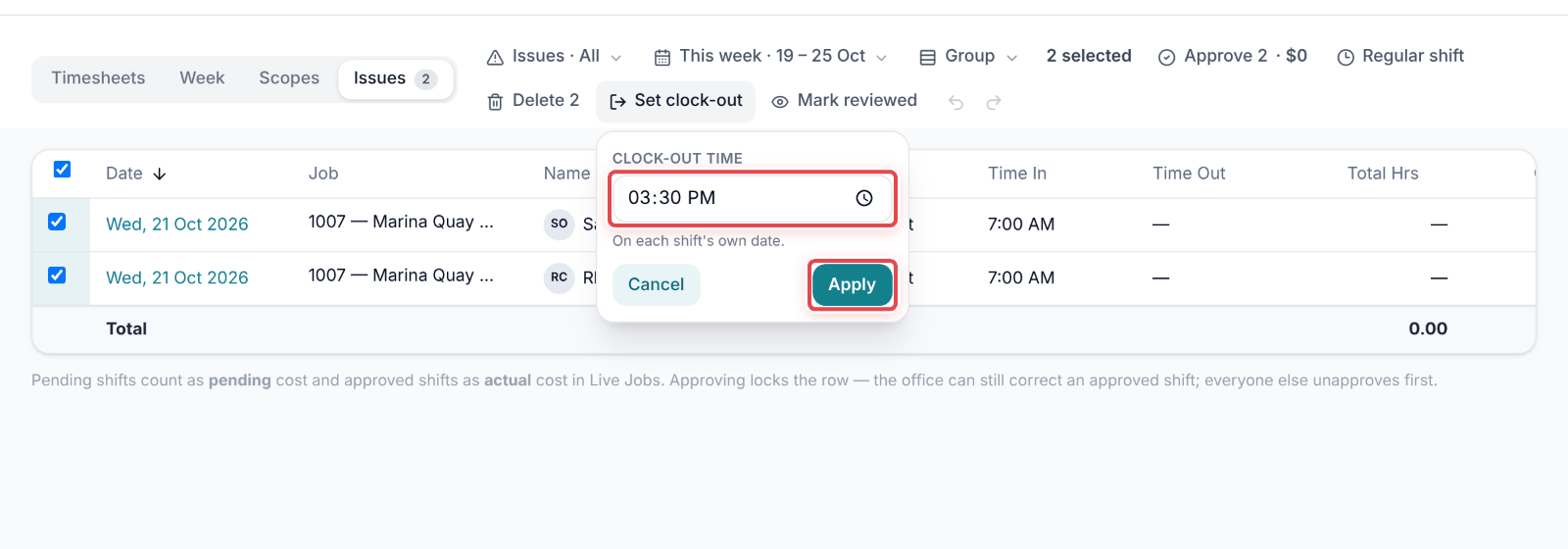
Step 5: Confirm. Each shift finishes at that time on its own date, breaks are deducted and a note is added.
Good to know
Note — No clock-out means the shift has been running longer than the daily limit.
Important — Approved shifts can't be changed here — un-approve them first.
Tip — On site and forgot? Clock out on the phone now, then fix the finish time here — or ask the office to.