Start a scope from a template
Load a scope's rows and measurements from one of your saved scope templates.
On a computer · 4 steps · Updated
Video transcript
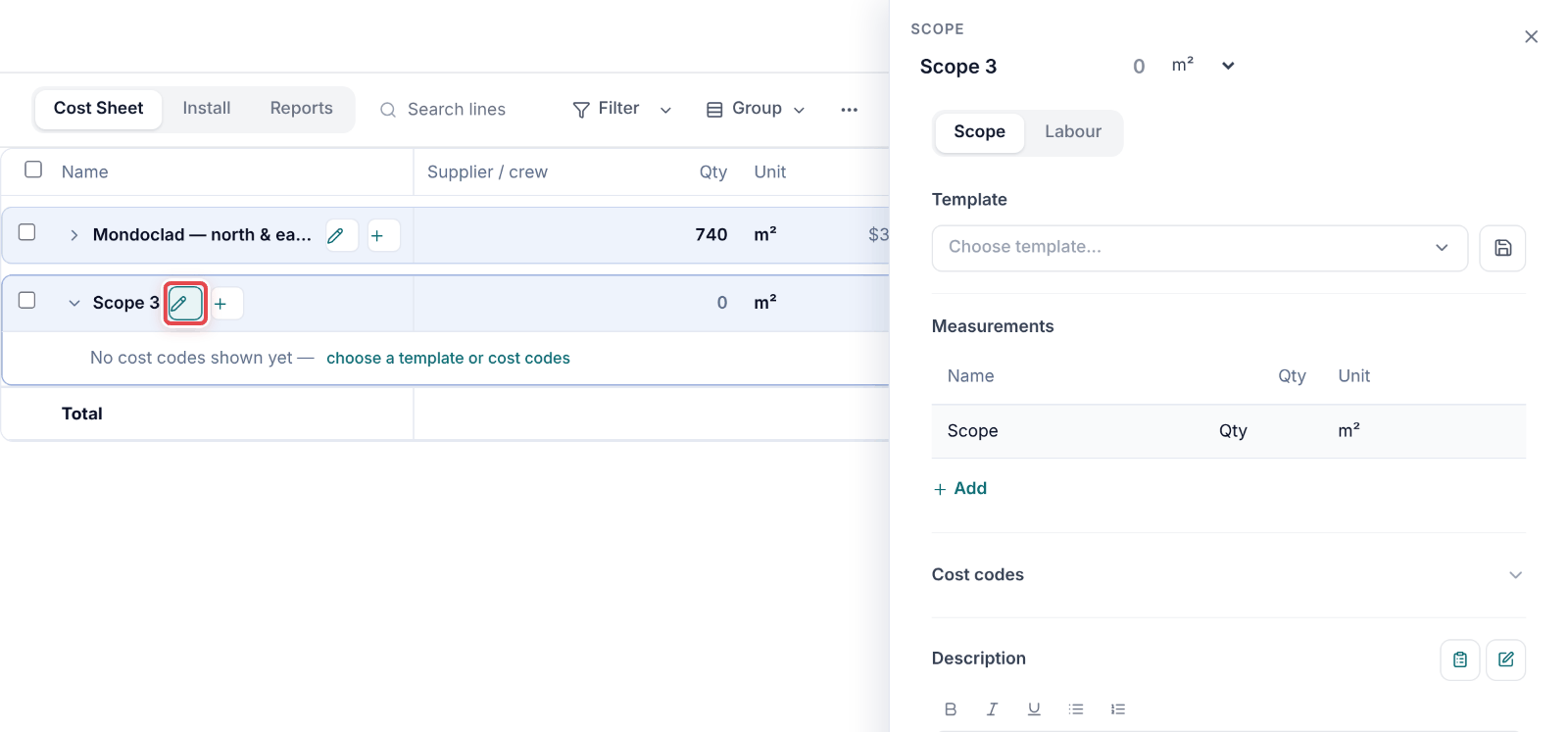
- 0:24The pencil opens the scope's details. Click Choose template.
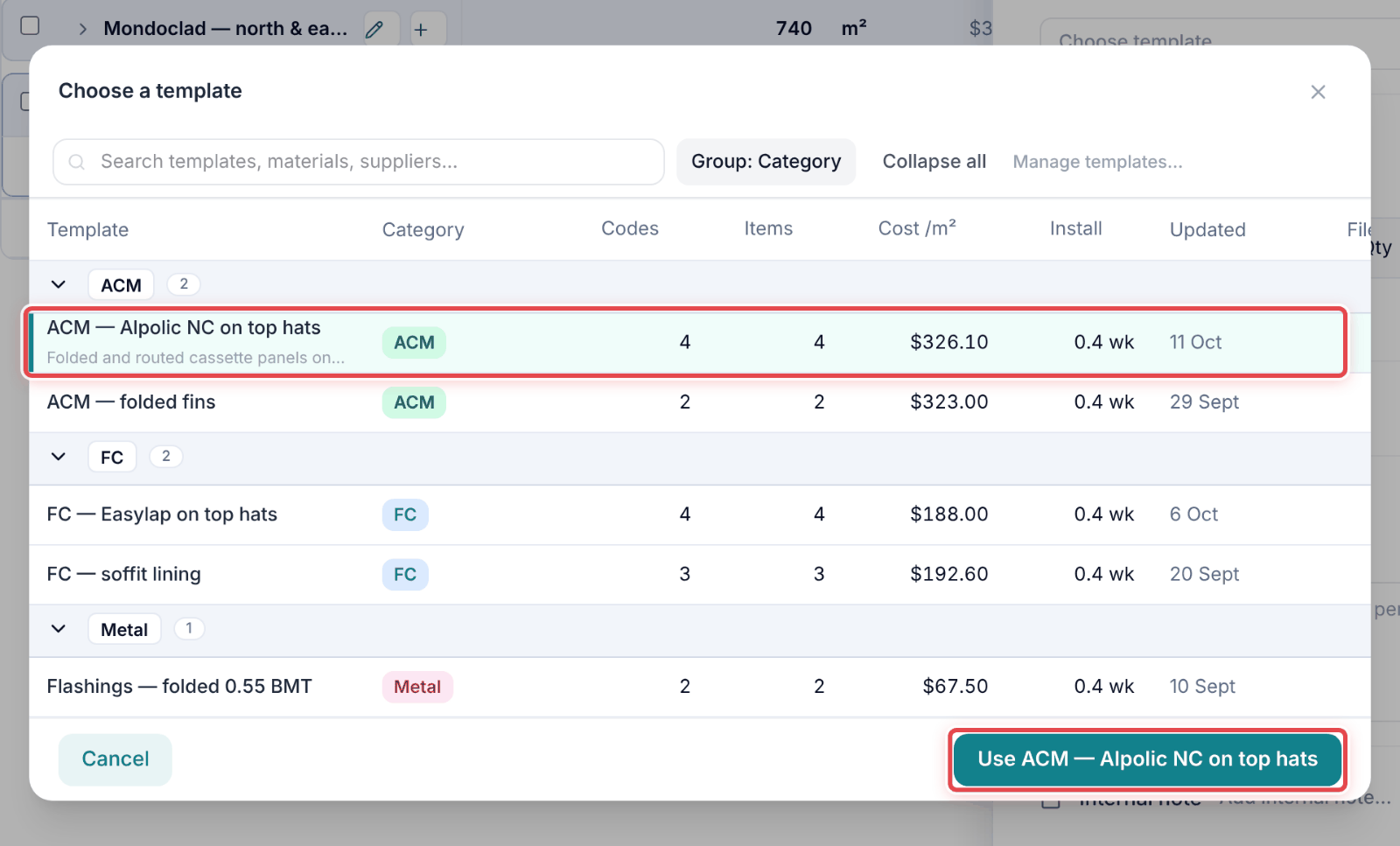
- 0:30Your template library opens. Pick Mondoclad, then Use.
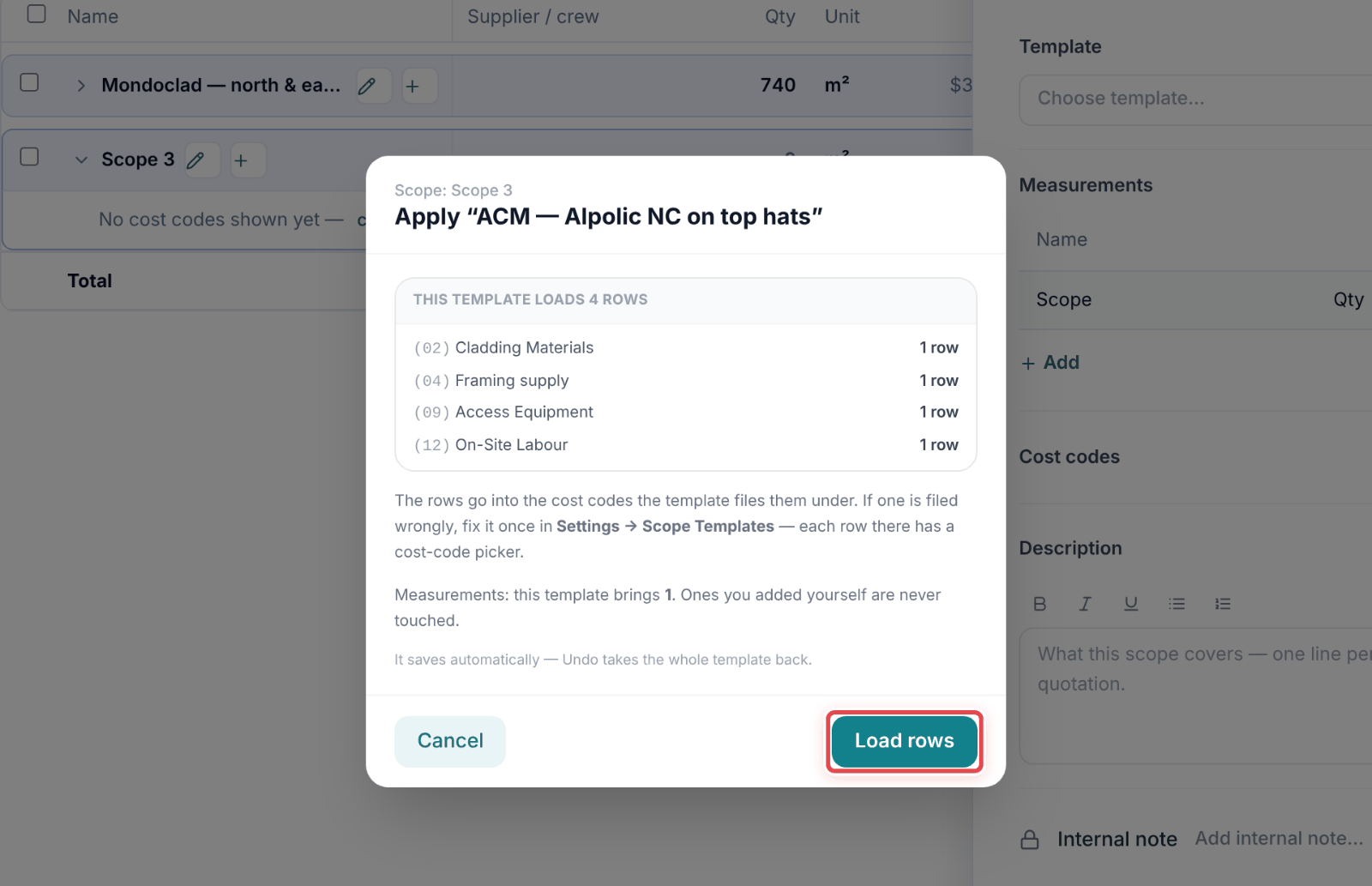
- 0:36It shows what comes in, cost code by cost code. Load rows.
- 0:42Every rate and formula is in. Each little f follows the scope's quantity.
- 0:47Under Description, the clipboard opens your description templates.
- 0:52Pick Mondoclad. The wording drops in, just as the quotation prints it.
Steps
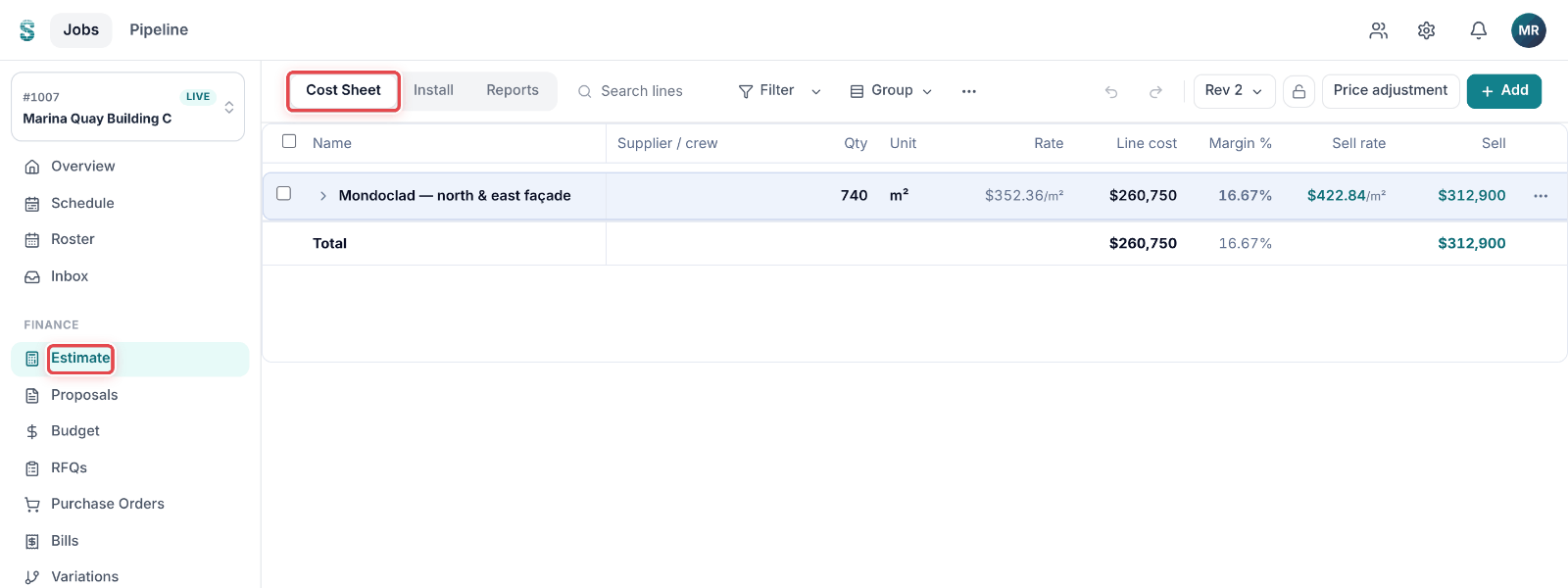
Step 1: Open a job, then go to Estimate. The Cost Sheet tab opens.
Step 2: Click the pencil beside the scope's name to open its details.
Step 3: Under Template, click Choose template… and pick one.
Step 4: Check what it brings, by cost code, then click Load rows.
Good to know
Important — If the scope already has rows in those cost codes, Replace clears them first and Add to existing keeps them — which is how a scope ends up with two of everything.
Note — Your templates live in Settings → Scope Templates. Fix a row there once and it loads right on every job.
Tip — It saves by itself, and Undo takes the whole template back.