Use measurements in a quantity
Name a measurement once and build quantities on it, so every line follows when it changes.
On a computer · 5 steps · Updated
Video transcript
- 0:00Measure once, and let formulas price the balustrade.
- 0:07Plus Add a new scope. Name it Balustrades, forty-two, and set the unit to lineal metres.
- 0:21Open its details, and add a measurement called Posts.
- 0:27Its quantity is a formula. The run, divided by one point two metre spacing, plus one.
- 0:34Thirty-six posts. ROUND always rounds up, so you never come up short.
- 0:40Add a second one. Height, one point one metres.
- 0:49Open Cost codes, and tick the ones it needs: glass, supply, sundries and labour.
- 0:59On a cost code, the book opens your catalogue items for that code.
- 1:04Pick the balustrade post. It comes in at sixty-eight dollars each.
- 1:09Add the top rail from the same code.
- 1:14Under Cladding Materials, the glass infill panels.
- 1:19And under Sundries, the base plates, then the chemical anchors.
- 1:30Now click a quantity, type a curly bracket, and pick Posts.
- 1:35Thirty-six posts, at sixty-eight dollars each. The base plates use Posts too.
- 1:44Four anchors a post. Four times Posts.
- 1:50The top rail is simply the run. Pick scope.
- 1:57The glass is the run times the Height. Forty-six point two square metres.
- 2:06Change the run to forty-eight metres, and every line follows.
- 2:13Happy with it? Open the details and click the save icon beside Template.
- 2:19Give it a name, and Save to library. The formulas go with it.
- 2:29It's in your library now. The next balustrade is priced from one number.
- 2:35Measure once, and every line is priced. Next up, the install plan and reports.
Steps
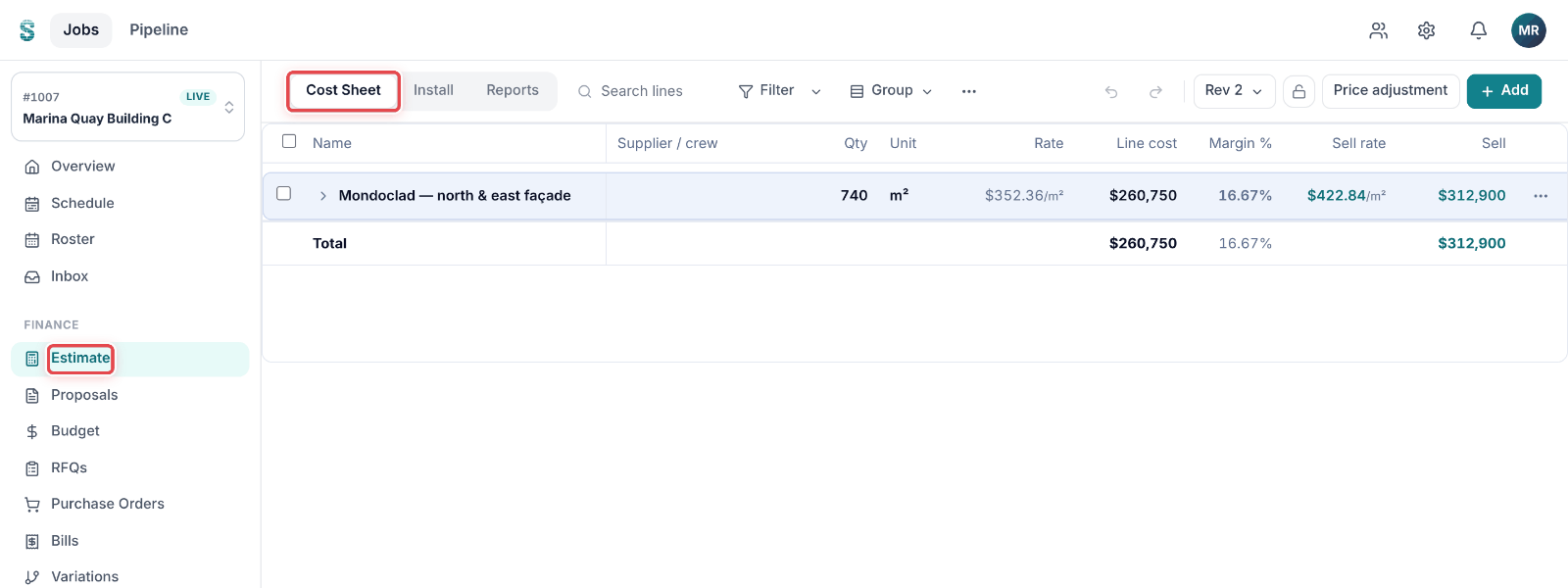
Step 1: Open a job, then go to Estimate. The Cost Sheet tab opens.
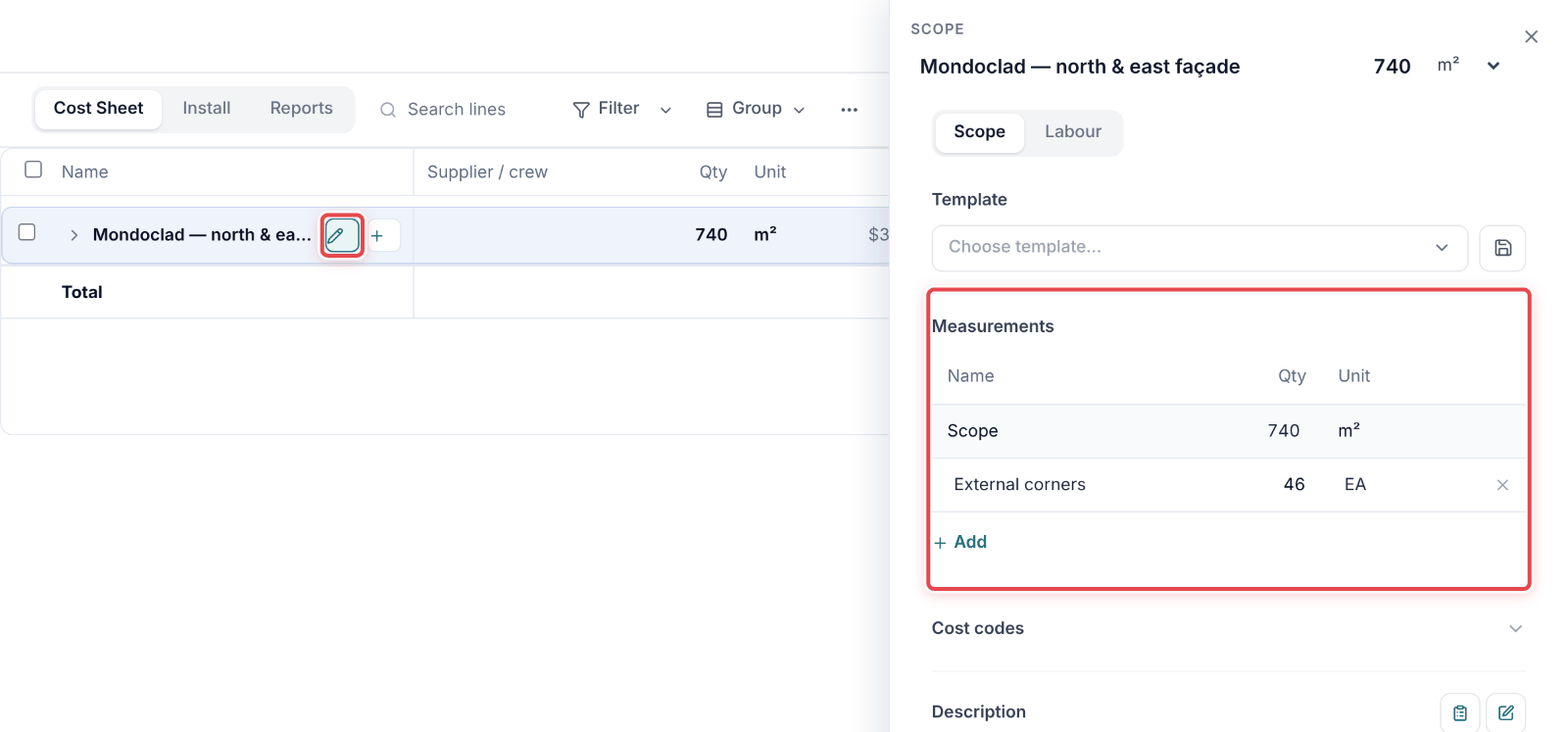
Step 2: Click the pencil beside the scope's name and go to Measurements.
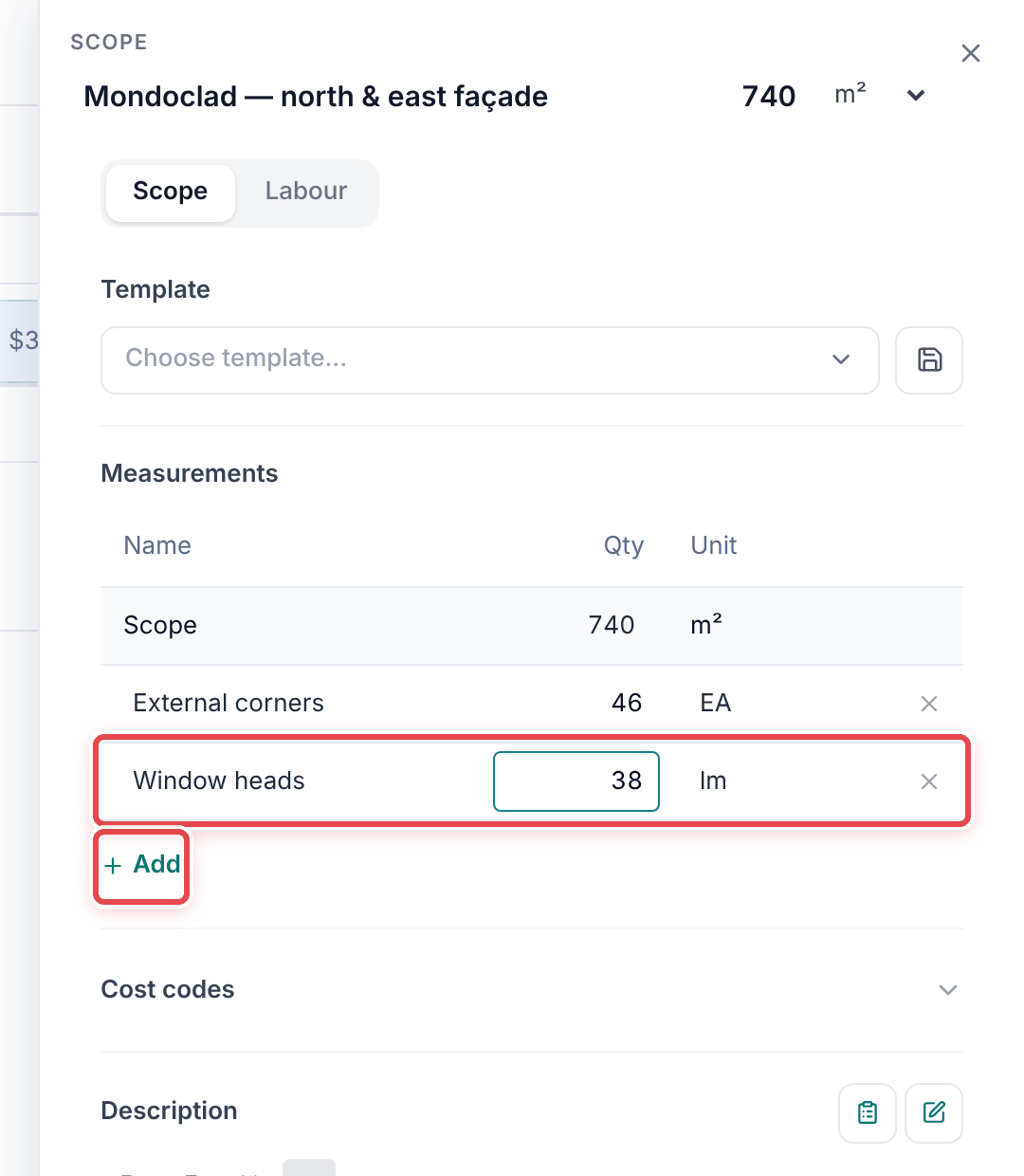
Step 3: Click Add, then type the measurement's Name, Qty and Unit.
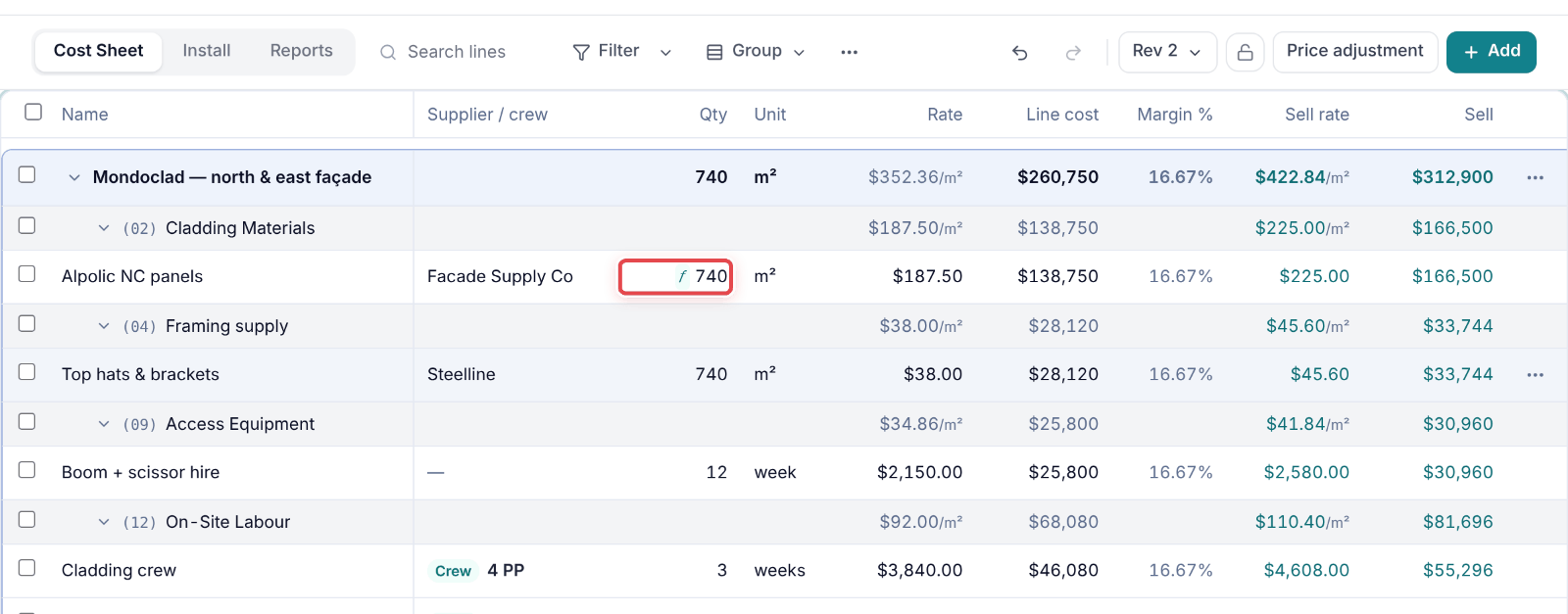
Step 4: In a row's quantity cell, type a formula. Type { to pick one of the scope's measurements.
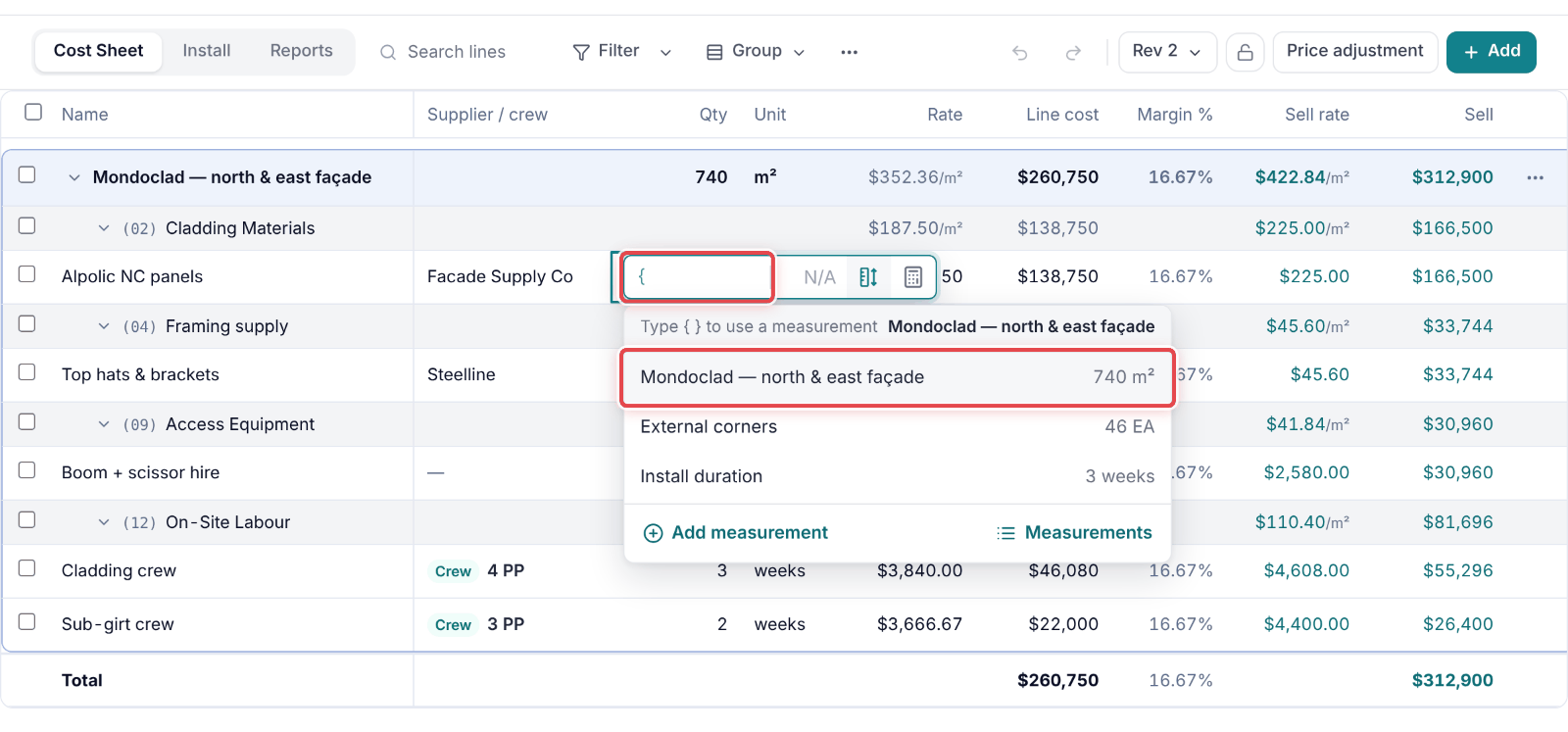
Step 5: Press Enter. The cell shows the result, and it follows the measurement from now on.
Good to know
Important — A formula that can't be read never turns the row to $0 — Enter keeps the editor open and says what is wrong.
Tip — Measure in the toolbar shows the measurements beside the sheet while you price.