Start a new revision
Re-price a job without losing the price you already sent.
On a computer · 4 steps · Updated
Video transcript
- 2:20Rev starts a new revision of the estimate.
Steps
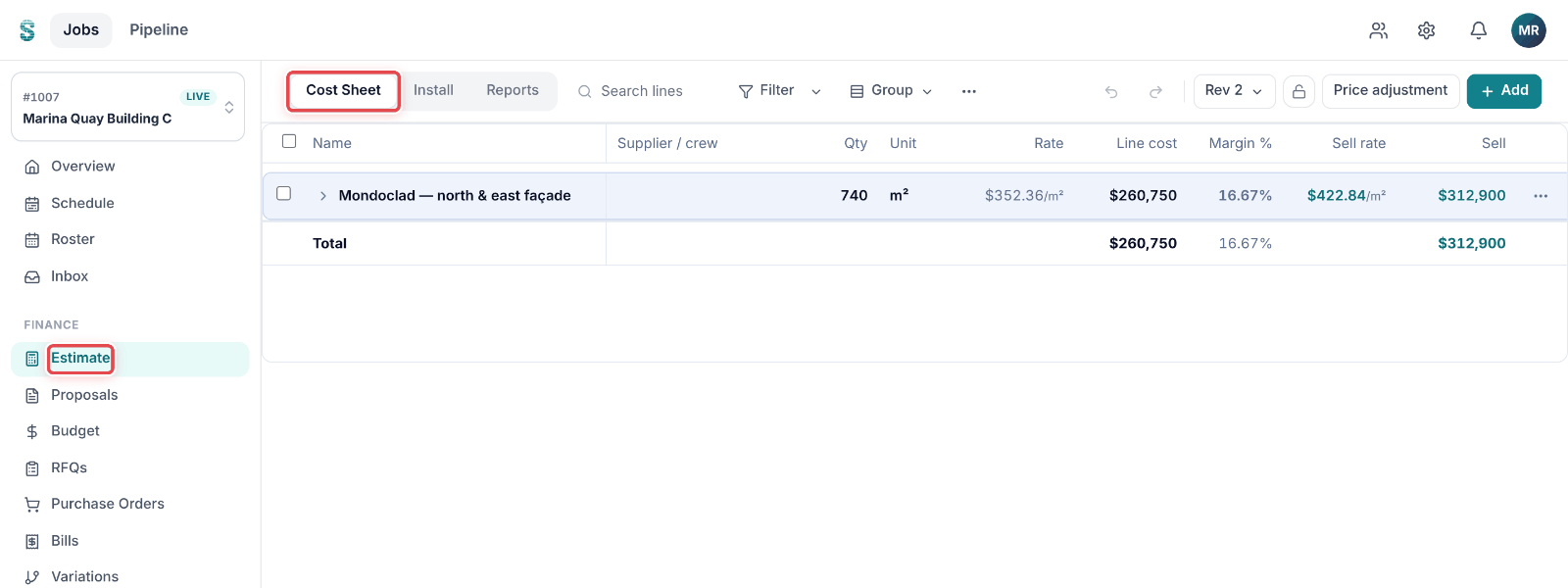
Step 1: Open a job, then go to Estimate. The Cost Sheet tab opens.
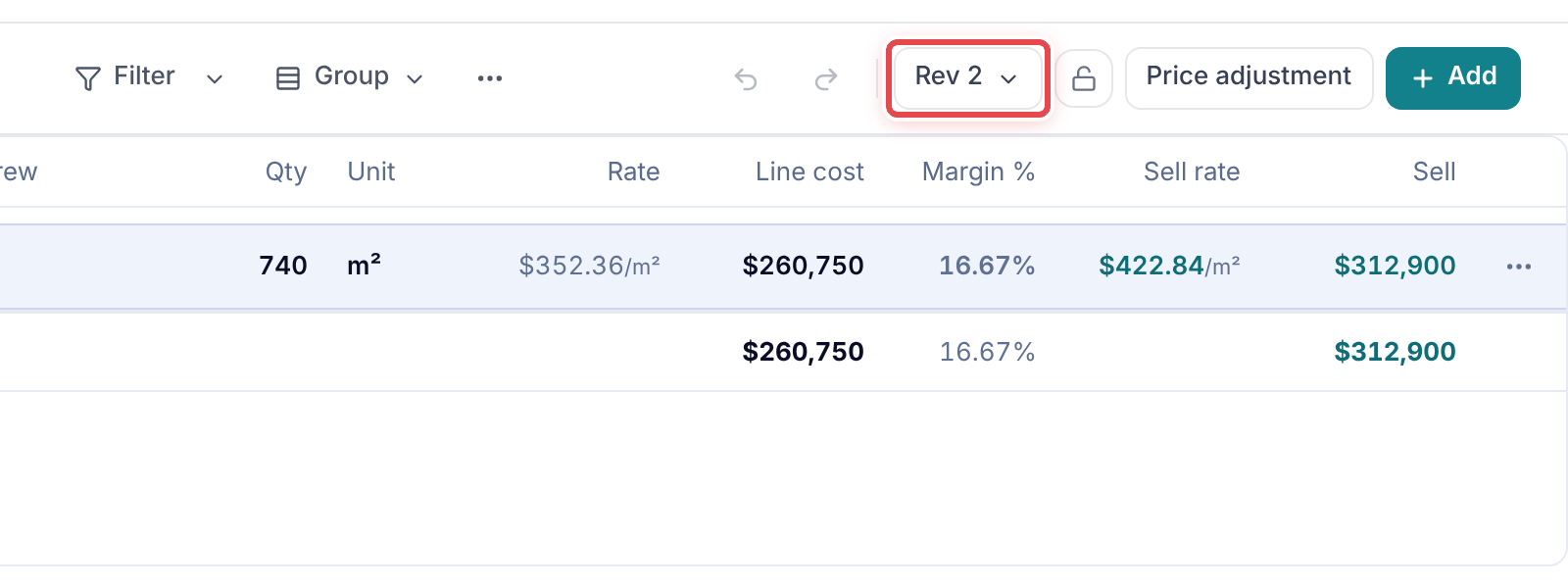
Step 2: Click the revision button in the header (for example Rev 1).
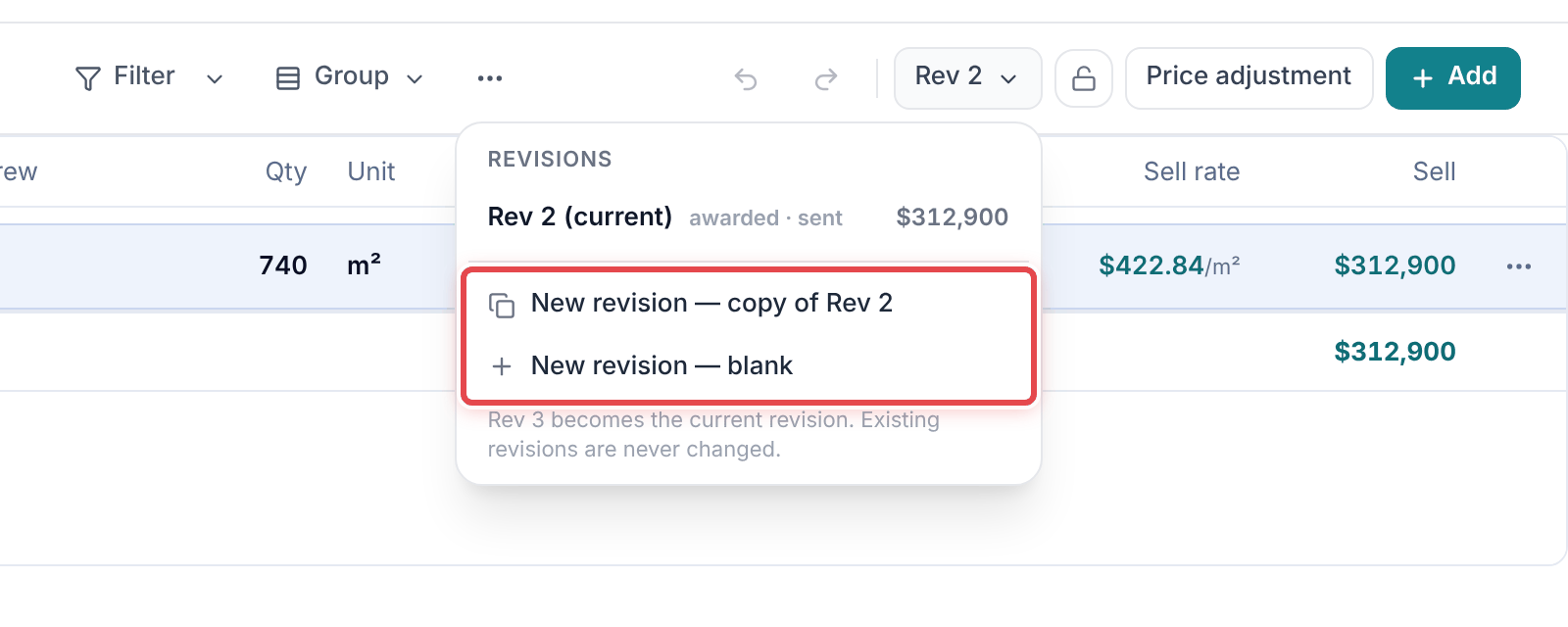
Step 3: Pick New revision — copy of Rev 1 to start from this price, or New revision — blank.
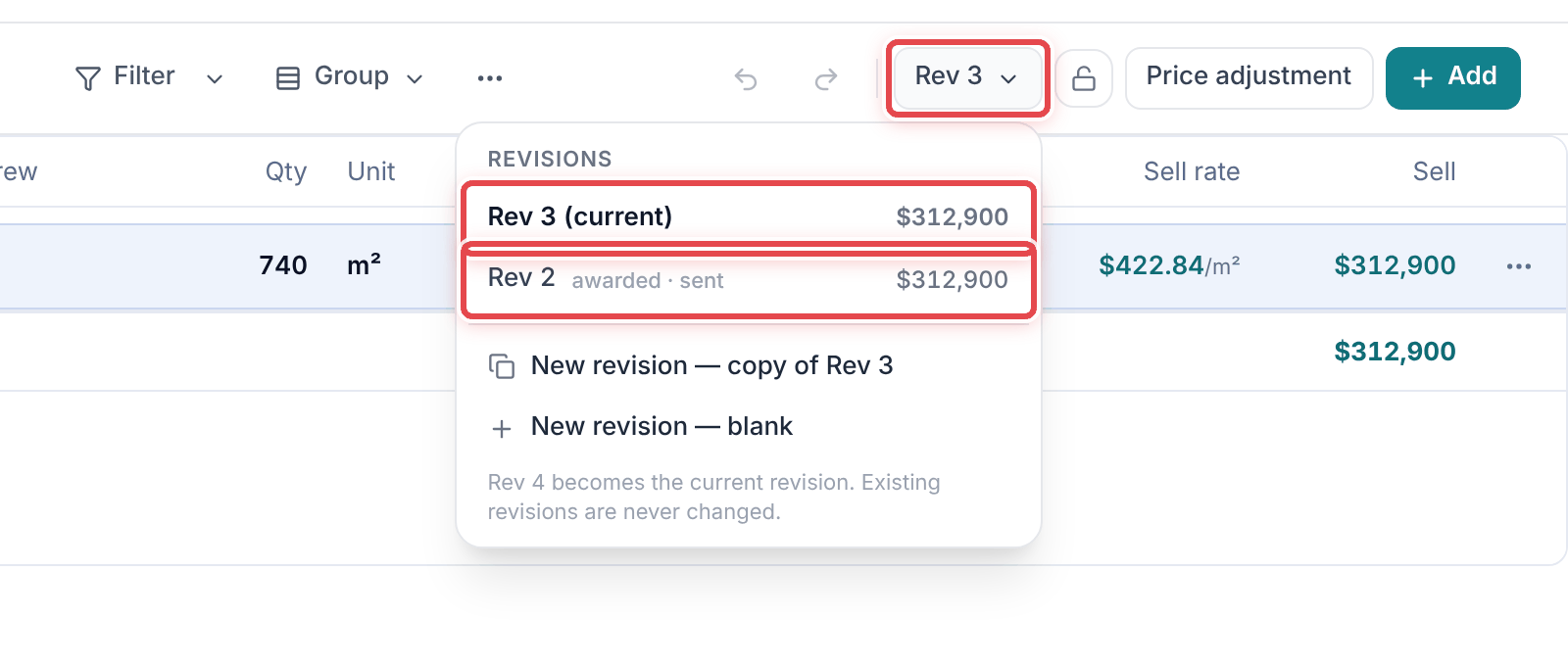
Step 4: The new revision becomes the current one. Open any older one from the same menu.
Good to know
Important — Existing revisions are never changed — last month's revision keeps the price and quantities it was sent with.